How to save your Exchange 2007 PowerShell session transcript

I was doing some troubleshooting when I came over an article for automating the process for saving your transcript in PowerShell to a file. The article can be found here : http://blogs.technet.com/benw/archive/2007/07/24/how-to-save-your-exchange-2007-powershell-session-transcript.aspx

In the article the author talks about editing the PowerShell Profile. I cant do this for every customer site I am at, so I have edited the syntax to fit my needs. If this is run after you launch PowerShell the file is saved at the root of your C drive.

CD \
$date = get-date -UFormat %y%m%d
Start-Transcript c:\$date.txt -append -noclobber

This will set the working directory to the root of the C drive (gives you more real estate to work with), defines a variable called $date, and specifies that it will get the date in the format of YearMonthDay (i.e. 090706), then tells Powershell to start the transcript, and it uses the variable we defined earlier to automatically create a new text file based on the current date.  Additionally, since the default behavior of start-transcript is to overwrite the previous file, we are telling it to append to an existing file (if present), and the -noclobber tells it to not overwrite the previous file.

Powershell does have some other options here.  The Start-Transcript command includes a -Path parameter that you can define, but it is not used here.
Single consolidated EDGE server clarified

Any Post starting with this disclaimer means that this post was not written by me however I liked it and added to my blog. I will also include the link to the original or similar post to provide credit to the original author

http://blogs.pointbridge.com/Blogs/schertz_jeff/Pages/Post.aspx?_ID=33#EntryTabs

Deploying an OCS 2007 R2 EDGE server can be confusing at times. I have been looking for the most cost effective way to deploy a consolidated EDGE server utilizing the least amount of NIC’s and public IP addresses. In the past when I have deployed EDGE server I have used separate NIC’s with publicly routable IP addresses to save myself some grief.  I found Jeff’s blog very easy to understand and I am sharing an excerpt clarifying the different ways to deploy a consolidated EDGE server.

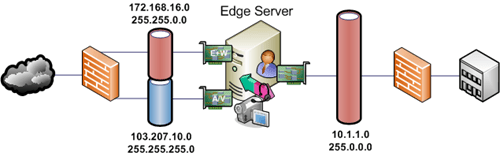
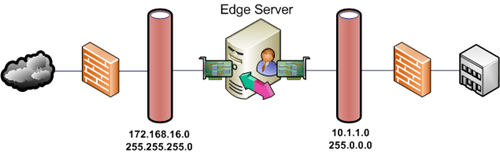
The documented, recommended, and unquestionably supported configuration is simply to deploy separate physical network interface cards which are connected to separate IP subnetworks.  (This includes a single physical card with multiple ports; whatever physical configuration that allows you to plug two cables into the server and the host sees separate interfaces. Let’s not get silly here.)  By definition this means that the internal and external subnetworks need to be uniquely different, which is typically found in a standard Perimeter Network located between separate firewalls.

A simple Access Edge deployment utilizing NAT:

IMAGE_1

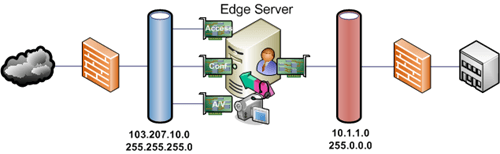
Or a consolidated Edge deployment with all three external roles assigned publicly routable IP addresses:

IMAGE_2

The above configuration only works for a consolidated Edge Server when all external IP addresses are on a public IP subnetwork, otherwise separate adapters connected to separate IP subnetworks would need to be used.  The Access Edge and Web Conferencing roles can be co-located on the same same external interface using the same IP private subnetwork.

Here’s a consolidated Edge deployment using the least amount of public IP addresses:

 IMAGE_3

This can be expanded up to separate physical adapters for each external role in a consolidated Edge server, as shown repeatedly in the documentation, for enhanced performance and security.  And if plenty of public IP addresses are available, then assigning each role a public address simplifies the configuration further:

IMAGE_4

Microsoft Office Visio Stencils for Exchange 2007 and OCS 2007

[tweetmeme source=”stalehansen” only_single=false]Microsoft Office Visio

Update November 2010: Many of you reach this site while searching for the Exchange 2010 Visio stencil. They are now released and can be downloaded here: http://www.microsoft.com/downloads/en/details.aspx?FamilyID=901d471c-8bd9-47ad-b6db-452309f12ebe. Also check out Visio stencils for IT Pro posters.
 
Are you creating new diagrams or architecture drawings for your OCS rollouts? If so, take advantage of the new OCS 2007 Visio stencils. The icons in the stencil include all OCS 2007 components. They also include various individual functions that you can use to create your own new icons. The icons and your new icons can be added easily to the stencil. Download it here: http://www.microsoft.com/downloads/details.aspx?FamilyID=543705f6-d02a-436e-8b34-5c796550022a&displaylang=en
 
The Exchange 2007  stencil and template provided enable you to create Visio drawings that contain Exchange Server 2007 objects. These shapes include icons for Exchange 2007 server roles, networking, telephony and Unified Messaging objects, Active Directory and directory service objects, client computers and devices, and other Exchange organization elements. Download it here: http://www.microsoft.com/Downloads/details.aspx?familyid=45F7EA49-CEB2-4B04-8D46-2B0AE5E10694&displaylang=en
 

How Windows Live Messenger works

Any Post starting with this disclaimer means that this post was not written by me however I liked it and added to my blog. I will also include the link to the original or similar post to provide credit to the original author

Read the entire post here: http://www.milkaddict.com/?p=21

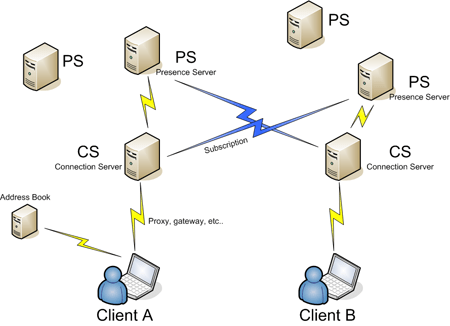
How does Windows Live Messenger works? there are millions of users typing messages everyday but maybe few of them ever asked themselves how the messenger really works! so here I wrote a little post about it. Windows Live Messenger it’s an hybrid Client-Server / Peer-to-Peer application. It basically started as a client-server application. Let’s say that the client A wants to contact the client B. The client A logs in a CS (Connection Server) through a persistent TCP connection (eventually using proxy,gateway..). Behind the CS there are the PS (Presence Server). Each person get always the same particular PS, which is where your personal status message, description of your user photo and similar things are stored.

Msn1

Another element of the architecture is the Address Book. The client A gets directly from the Address Book his list of contacts. Then the client A tells to his CS who his friends are, the CS subscribes to his friend’s PS to get the presence information that are sent up through the client server connection. If the client A change his status to OffLine for example, the change goes up to the CS of A, then to the PS of A, then down to the CS of B through the subscription and then down to the client B.

CHAT

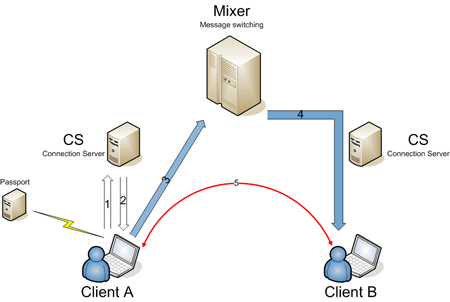
If the client A wants to chat, tells to his CS that wants to contact somebody, and the CS tells A to contact a Mixer, which sends IM traffic to a destination, for example to B (passing through the CS of B). Then A and B and talk back and forth through the Mixer.

Msn2

You can watch also an original video where some of the developers and visionaries behind Windows Live Messenger explain how it works. http://channel9.msdn.com/posts/Charles/Windows-Live-Messenger-What-How-Why/

The Response Group Service in OCS R2

When you are configuring The Response Group Service you need to do the following:

  1. Enable users as Agents. Must be activated for Enterprise Voice. These Agents can be grouped by Agent Groups
  2. Create an Agent Group. Route and queue incoming calls to groups of designated agents
  3. Create a Queue. Limiting the number of calls that the queue can hold and the period of time that an agent’s telephone rings before the call is passed to another agent
  4. Create a Contact Object. Holds information about SIP URI and telephone number
  5. Create a Workflow. Define the caller’s experience from the time the Response Group Service answers the call to the time that an agent responds

Some of the settings you configure under the Policy tab in Agent Groups are listed below:

  • Sign in behavior
    • Informal – Agents are automatically signed in to the group when they sign in to Office Communications Server, supported clients are 
      • Office Communications Server 2007 R2 Attendant
      • Office Communicator 2007 R2
      • Office Communicator 2007 R2 Phone Edition
    • Formal – Sign in and out of the group using an Office Communicator custom tab, see Configuring the Response Group Tab.
      • NOTE: The Communications Server 2007 R2 Attendant does not support formal agents
    • Not Active – The Response Group is disabled
  • Routing Method
    • To offer a new call first to the agent who has been idle the longest, click Longest idle.
    • To offer a new call to all available agents at the same time, click Parallel. The call is sent to the first agent who accepts it.
    • To offer a new call to each agent in turn, click Round robin.
    • To always offer a new call to the agents in the order in which they are listed on the Agents tab, click Serial.

NOTE:The personal forwarding settings set by individuals in Communicator does not apply when the call comes from a Response Group. See this blog explaining it: http://communicationsserverteam.com/archive/2009/07/16/Response_Group.aspx

When you create a workflow, predefined templates are provided to make it easy for you to create new workflows. The following list describes the features available in each of the templates:

NOTE:To log in to the Workflow configuration website you need to be a member of RTCUniversalServerAdmins. If you still have problem viewing the site and you are on a Server 2008 deployment, check this post about how to fix this in IIS 7. I have not experienced this problem myself. http://www.networkworld.com/community/node/40716

  • Basic Hunt Group. Routes callers to the specified queue without asking any questions.
  • Enhanced Hunt Group. Routes callers to the specified queue without asking any questions. Includes a welcome message and music on hold settings, as well as controlling business hours when calls will be accepted, and a message to play outside of business hours.
  • One-Level Interactive. Routes callers to the specified queue after asking a question that you specify. The caller can respond by using the phone keypad or by using interactive voice response. Includes a welcome message and music on hold settings, as well as controlling business hours when calls will be accepted, and a message to play outside of business hours.
  • Two-Level Interactive. This template has all the features of the One-Level Interactive template, but you can ask two questions. Depending on the response to the first question, you can route the call to a queue or ask a second question

NOTE: When configuring for EE servers behind a load balancer, be sure to enable port 5071 for response groups

You can use a .wav file for some Response Group settings, such as the welcome message, the on-hold music, or the Interactive Voice Response questions. All user provided .wav files must meet the following requirements:

  • 8-bit or 16-bit file
  • Linear pulse code modulation (LPCM), A-Law, or mu-Law format
  • Mono or stereo
  • 4MB or less

For the best performance, a 16 kHz, mono, 16-bit .wav file is recommended

Source: http://technet.microsoft.com/en-us/library/dd441155(office.13).aspx

How to appear offline in MOC

Sometimes it is nice to be able to appear offline when you are logged in using Office Communicator. Setting for using this is when you need to be offline but appreciate being able to see presence of others in Communicator, Outlook and Sharepoint. To apply this you need to use regedit:

  • You need to create following registry DWORD and set its value as 1 to enable it.
  • The DWORD name is EnableAppearOffline, type is REG_DWORD and location is
    • My Computer\HKEY_LOCAL_MACHINE\SOFTWARE\Policies\Microsoft\Communicator.
  • After making above change, exit from office communicator (from system tray) and relaunch it.

Scalability of Combined CAS and Hub Roles in Exchange 2007

From the White Paper: Determining the Scalability of Combined Client Access and Hub Transport Server Roles in Exchange 2007 over at Technet. http://technet.microsoft.com/en-us/library/dd901772.aspx

Conclusion

We found that the Client Access server and Hub Transport server roles can be combined and supported in most environments. Based on the test results, we recommend the following hardware configuration for servers that are running both the Client Access and Hub Transport roles:
  • 8 processor cores
  • 12 GB of RAM
  • Pagefile size, RAM + 10MB (for systems with 8 GB of RAM or less, set pagefile to RAM * 1,5)

The tests showed that a server with 8 processor cores and 12 GB of RAM provides an optimal balance of server costs and scalability. This configuration allows a combined-role server to handle significantly more load than a 4-core server if the number of clients increases and if the clients access processor resources heavily. Clients such as Outlook Web Access and Exchange ActiveSync consume more of the processor resources of a Client Access server than do clients such as Outlook. Increasing processor resources and memory on a Hub Transport server allowed the server to handle an increased average message size. There was a direct correlation between an increase in average message size and greater processor use. Having more available memory also allowed the server to better handle transient events, such as transport queue growth.

Key considerations for supporting the two roles on a single Exchange server are:

  • All deployments should take advantage of the transport database maximum cache size recommendations. This helps avoid back pressure events. For more information, see the Exchange Team Blog article New maximum database cache size guidance for Exchange 2007 Hub Transport Server role.
  • Consider carefully both RAM and processor requirements when you’re planning server hardware. Be sure you understand the following areas of resource constraint:
    • The Hub Transport role is primarily processor and disk intensive.
    • The Client Access server role is primarily memory intensive.
    • The combined Client Access and Hub Transport server is primarily processor constrained.
  • A single 4-core, 8-GB RAM, combined-role server can service the same load as two 2-core, 4-GB RAM, single-role servers.
  • A single 8-core, 16-GB RAM, combined-role server can service the same load as two 4-core, 8-GB RAM, single-role servers.
  • Based on these tests, we don’t recommend deploying servers with 2 processor cores or 4 GB or less of RAM for use as combined-role servers.

Virtualization and collocation support for Office Communications Server 2007 R2

Here are some of the features that are supported for virtualized environments.

  • Presence
  • IM (including remote access, federation, and Public IM Connectivity)
  • Group Chat
  • SQL Server back-end server

Check the full post over at OCSpedia.com http://www.ocspedia.com/Misc/OCS_Virtualization_Support.htm

Check out the supported server role collocation http://technet.microsoft.com/hi-in/library/dd425201(en-us,office.13).aspx

How to partition addressbook by Organizational unit using WMI

I tried to partition address book by organizational unit using WMI settings with no luck using this guide: http://blogs.technet.com/chlacy/archive/2007/12/04/partition-address-book-by-organizational-unit.aspx

The goal was to have different organizations hosted on the same server, but without them being able to search each other.

I took me some time to find out that the guide missed some final steps. I have here pasted the whole walkthrough and the additional steps are from 17 and forward

UPDATE: For OCS 2007 R2 you need to replace step 4 to 7 with these steps:

  • Query
  • Select * from MSFT_SIPAddressBookSetting where backend = “<Poolserverinstance>”

The original steps fro OCS 2007 R1 is as follow:

  1. Click ‘Start’ -> ‘Run’ and type ‘WBEMTEST’
  2. Click ‘Connect’
  3. Under ‘Namespace’ type ‘root\cimv2’ and click ‘Connect’
  4. Click ‘Enum Classes’
  5. Click ‘Recursive’ and then ‘OK’
  6. Locate MSFT_SIPAddressBookSetting and double-click it
  7. Click ‘Instances’
  8. Double-click the instance
  9. Under ‘Properties’ find ‘PartitionOutputByOU’ and click ‘Edit Property’
  10. The default value is FALSE, change this to TRUE
  11. Click ‘Save Property’
  12. Click ‘Save Object’
  13. Click ‘Close’
  14. Click ‘Save Object’
  15. Click ‘Close’
  16. Click ‘Exit’
  17. Delete all the files in the addressbook share, server level not client level
  18. Open command prompt and navigate to the location to ABServer.exe
  19. Run ABServer -regenUR
  20. Run ABServer -syncnow
  21. Close Communicator, start it and sign in again
  22. Then it should work

See this post over at Inside OCS for a complete refence guide about WMI: http://blog.insideocs.com/2009/07/07/ocs-wmi-reference/

Validation of Application Sharing Server or Web Conferencing Server fails

When installing OCS 2007 R1 and R2 Enterprise edition server the validation of the Application Sharing Server or Web Conferencing Server fails with the error code

Received a failure HTTP response.: Unauthorized
[0xC3FC200D] One or more errors were detected

I have encountered this problem several times now and in my case this was a problem where IIS blocked local access when you use the fully qualified domain name (FQDN) or a custom host header to browse a local Web site that is hosted on a computer that is running IIS. You may receive an error message similar to the following: “HTTP 401.1 – Unauthorized: Logon Failed.” If you try the same URL from an other computer you should be able to access the site so it is not a critical problem.

If you want to fix this so that your validations don’t fail, configure IIS to allow enterprise pool FQDN for loopback:

  1. Click Start, click Run, type regedit, and then click OK.
  2. In Registry Editor, locate and then click the following registry key:
  3. HKEY_LOCAL_MACHINE\SYSTEM\CurrentControlSet\Control\Lsa\MSV1_0
  4. Right-click MSV1_0, point to New, and then click Multi-String Value.
  5. Type BackConnectionHostNames, and then press ENTER.
  6. Right-click BackConnectionHostNames, and then click Modify.
  7. In the Value data box, type the FQDN of your enterprise pool, and then click OK.
  8. Close Registry Editor, and then restart the IISAdmin service.

Resolution found over at Technet http://technet.microsoft.com/en-us/library/dd441168(office.13).aspx