Allowing application servers to relay off Exchange Server 2007

To allow application servers to relay through your Exchange 2007 server do the following

  • Create a new internal receive connector in EMC
  • Add the servers that need to relay
  • When created edit the settings and navigate to Permission Groups
  • Select only Anonymous users, deselect other options
  • Navigate to the Authentication tab
  • Deselect every checkbox so that nothing is selected
  • Apply changes
  • Open EMS and run the following commandlet
  • Get-ReceiveConnector “InternalRelay” | Add-ADPermission -User “NT AUTHORITY\ANONYMOUS LOGON” -ExtendedRights “ms-Exch-SMTP-Accept-Any-Recipient”
  • Relay should now work for the selected servers

This information was based on this blog, http://msexchangeteam.com/archive/2006/12/28/432013.aspx

Motivating UC Users

I saw this great post over at nojitter.com. It was about how to implement UC successfully in a business. See the conclusion below

To sum up, in order to motivate end users to use their UC capabilities, begin the process with a sponsorship team and head cheerleader, get your CXOs to set an example, get users throughout the organization excited about UC, and provide the training necessary to encourage proper usage of the solution

View the entire blog, http://www.nojitter.com/blog/archives/2009/05/motivating_uc_u.html

I saw this great keynote from Avaya at VoiceCon 2008 talking about what UC is for different types of users in an organization. It is something to keep in mind when implementing UC successfully. Check it out, http://link.brightcove.com/services/player/bcpid4661575001?bctid=1915453361

Deleted Mailbox not appearing in Disconnected mailbox in Exchange 2007

[tweetmeme source=”stalehansen” only_single=false]Deleted mailboxes will appear in disconnected mailbox list, but it will not reflect immediately. You have to wait for online maintenance to run and complete.

If you accidentally delete mailbox and if you wanted to reconnect it back then you may not be able to find it Disconnected Mailbox. You have to  run Clean-MailboxDatabase to get the deleted mailbox. Also if you want to disconnect the mailbox to re-add it to an other user or the same user do the following:

  • Disable the mailbox in EMC
  • When you disable a mailbox the user object stays in AD and the mailbox is marked for deletion.
  • The disconnected mailbox should appear in the disconnected mailbox view
  • If it is not appearing in the disconnected mailbox view run one of the following commands from powershell

Clean-MailboxDatabase \servername\SGName\Store
Cleaning Database of Individual Store

Get-Mailboxdatabase | Clean-MailboxDatabase
Cleans all the database in the Organization

Get-Mailboxdatabase | Where{ $_.Server –eq “<servername>”}| clean-MailboxDatabase
Cleans all the database in the specific store

Get-Mailboxdaatabase | Where{ $_.Name –eq “<DatabaseName>”}| clean-MailboxDatabase
Cleans all the Database which matches the specific name given in Databasename

  • After the command completes, check the event viewer for the following  event ID’s
    • Event ID 9531 – the clean mailboxdatabase process has begun
    • Event ID 9533 – a user does not exist in the directory or is not enabled for Exchange mail. This mailbox will be removed from mailbox store  in after the retention time has passed
    • Event ID 9535 – the process completes and lists that the mailbox was retained in the store
  • Finally you should see it in the disconnected mailbox view and you can connect it to the same AD user or an other AD user.

This blog was based on smtpport25’s blog, http://smtpport25.wordpress.com/2009/04/22/deleted-mailbox-not-appearing-in-disconnected-mailbox-in-exchange-2007/


If you need to restore the mailbox because it is not retained in the mailbox store, see these great sites for restore guide using Recovery Storage Groups
http://www.petri.co.il/using_rsg_in_exchange_2007.html
http://www.msexchange.org/tutorials/Working-Recovery-Storage-Groups-Exchange-2007.html

Request certificate using Exchange Management Shell

If you use the self-signed certificate assigned by the Exchange server itself there is a simple process to renew the certificate. You will typically get a note in the event viewer when the certificate is about to expire. Here’s a great blog that explains the process: http://exchangepedia.com/blog/2008/01/exchange-server-2007-renewing-self.html

To request or renew a 3rd-party (or from internal PKI infrastructure) SAN certificate that resides on your Exchange server using EMS I found this approach being useful. In this example I used an internal PKI infrastructure to assign a certificate to my internal Exchange Servers behind a NLB cluster for the ClientAccess role. I found that if the certificate is requested through an internal PKI infrastructure the certificate is issued for a period of one year and has to be manually renewed.

  • Create a request using EMS with this command
  • New-ExchangeCertificate –GenerateRequest –SubjectName “C=net, O=msunified, CN=webmail.msunified.net” –DomainName webmail.msunified.net, webmail.msunified.local, cashub01.msunified.local, cashub02.msunified.local –FriendlyName “CAS SAN Certificate” –KeySize 1024 –Path c:\CAS_SAN_cert.req –PrivateKeyExportable:$true
  • Open the req file, and copy everything except
  • —–BEGIN NEW CERTIFICATE REQUEST—–
  • —–END NEW CERTIFICATE REQUEST—–
  • Navigate to you CA server using the following url: http://CA-server/certsrv
  • click “request a certificate” and then select “advanced certificate request”
  • click  “Submit a certificate request by using a base-64-encoded CMC or PKCS #10 file, or submit a renewal request by using a base-64-encoded PKCS #7 file.”
  • past the content in the “saved request” window
  • hit submit
    •  If you have a 2003 CA and it does not support SAN certificates you need to enable it using this command
    • CERTUTIL -setreg policy\EditFlags +EDITF_ATTRIBUTESUBJECTALTNAME2
    • Restart the certificate service and IIS
  • click “download certificate chain” and save the file
  • On the exchange server import the certificate
  • Import-ExchangeCertificate -Path c:\2009-2.p7b -FriendlyName “webmail.msunifed.net”
  • Copy the thumbprint and enable the certificate for the selected services
  • Enable-ExchangeCertificate -Thumbprint 8192F31A99E9C89A41F572CC7AC88864551AFC91 -Services pop,imap,smtp,iis
  • Export the certificate for other exchange servers having the same role with certificate chain using IIS or open the local computer personal store
  • On the other servers import using IIS
  • On the other servers rund Enable-ExchangeCertificate -Thumbprint 8192F31A99E9C89A41F572CC7AC88864551AFC91 -Services pop,imap,smtp,iis
  • Remove the old certificate with the following command Remove-ExchangeCertificate -Thumbprint 8192F31A99E9C89A41F572CC7AC88864551AFC91

To renew self-signed certificates on the EDGE servers for the SMPT transport service

  • On the EDGE servers open EMS and do the following
  • Get-ExchangeCertificate | New-ExchangeCertificate (if its the only certificate on the server)
  • Remove-ExchangeCertificate -Thumbprint 1025C608027188FFA4DFAE77089D183DABACD077
  • You then have to re-establish the EDGE syncronizations with the new certificate
  • New-EdgeSubscription -FileName c:\newsub.xml
  • Copy the xml file to the internal servers
  • On the EMC for the HUB role in the organizational view, remove old edge subscription and then do a new one, specify the correct xml file
  • To synchronize the first time run from EMS the following commandlet: Start-EdgeSynchronization
  • To test the synch, run the following commandlet: Test-EdgeSynchronization

To be able to deploy SAN certificates from intern CA, you may have to extend the attributes: http://support.microsoft.com/kb/931351

This blog is loosely based on these sites
http://telnetport25.wordpress.com/2008/07/13/windows-2008-exchange-2007-renewing-an-existing-ssl-certificate-on-your-client-access-server/
http://exchangepedia.com/blog/2008/01/exchange-server-2007-renewing-self.html
http://www.exchangeinbox.com/article.aspx?i=114
http://msexchangeteam.com/archive/2007/07/02/445698.aspx

Get-MailboxDatabase oneliner

If you run the Get-MailboxDatabase commandlet with no switches it returns all the Exchange 2007 databases in the organization. If you are looking for a list of when each database had a full backup you need to use the -Status switch.

Get-MailboxDatabase -Status | Sort -Property LastFullBackup |ft Identity,LastFullBackup

This will return the Identity and the time for the last full backup of each database in sorted order. This is a useful list when doing maintenance in an Exchange organization.

If you need  a quick powershell script that dumps each Storage Group and its backup-related information visit the Exchangepedia Blog at: http://exchangepedia.com/blog/2008/09/script-get-storage-group-backup-status.html

How to configure a SIP trunk between Cisco Call Manager 5.x or 6.x or 7.x and OCS 2007 R1 or R2

Any Post starting with this disclaimer means that this post was not written by me however I liked it and added to my blog. I will also include the link to the original or similar post to provide credit to the original author

 http://theucguy.wordpress.com/2009/02/20/how-to-configure-a-sip-trunk-between-cisco-call-manager-5x-or-6x-or-7x-and-ocs-2007-r1-or-r2/

Ok you want to ring from MOC to Cisco IP phone and back  , hmmm ok then simple we will deal with it as if OCS is an IP PBX with its extensions 3xxx and you need to connect it with Cisco PBX with extensions 7xxx.

To do that we need a SIP trunk and for the SIP trunk to work fine we need to have some specific configuration on that trunk , remember any of these settings if they not configured right then you will not be able to make a stable calling between Cisco and OCS.


First we do the SIP trunk :

trunk1

 trunk2

Now the SIP trunk which is acting like the bridge between the cisco and the OCS is created , ok then we need now to create a criteria where this trunk is going to be used in.  This is where is Pattern comes in where we will say if a Cisco phone set tries to dial extensions starting with 3xxx then you use the trunk which we have just created .

and from the way back from the OCS to Cisco , when the number is sent in the E164 formate with the + , the Cisco will simply ignore all that and will take only the last 4 Digits which are the 7xxx

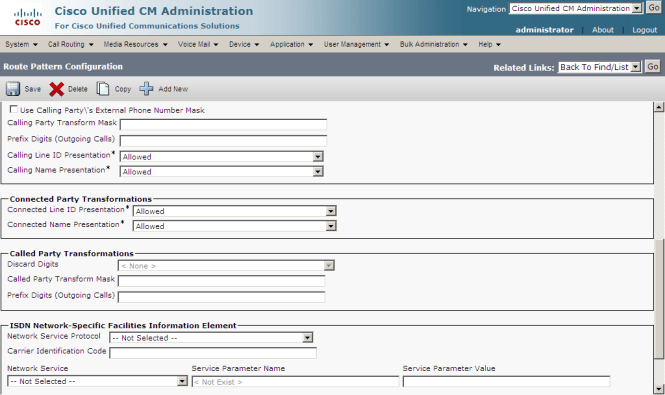
pattern1

pattern2

Now you are ready to make the call and Enjoy the Integration via the OCS mediation server.

How to enable Outlook Anywhere on Exchange 2007

Here is a great article on enabling, verifying and troubleshooting Exchange Outlook Anywhere http://www.exchange-genie.com/2008/02/configuring-outlook-anywhere-for-exchange-2007-sp1/

See this articel for publishing Outlook Anywhere with ISA Server 2006 http://www.msexchange.org/tutorials/Outlook-Anywhere-2007-ISA-Server-2006.html

Outlook Anywhere Troubleshooting Guideline

Collect info:

Is it a testing environment?
Is the testing client located in the domain when you tested it?
Where did you get the certificate for outlook anywhere, Microsoft CA?
Did you create CNAME record for your exchange server’s external hostname? If the external hostname is set differently with the FQDN of the exchange server

The steps to enable outlook anywhere:

  1. Enable outlook from EMC, I suppose you’ve already done that.
  2. Add certificate to “Default Web Site” in IIS. 
    1. Note the values of the “Subject” and “Subject Alternative Name” fields Right-click “Default Web Site”->”Directory Security”->”View Certificate” button“Details” tab->check those fields
    2. Notes: “Subject” shall be the same one as your external hostname
  3. Check “RPC” Virtual Directory in IIS
    1. Launch IE
    2. Enter URL https://servername/rpc
    3. It shall prompt for credential, cancel it
    4. The content of webpage shall only contain the words “Error: Access is Denied”
  4. Try to create mail profile for test user in the domain at first
    1. Notes: After autodicover mail profile has been created, go to the setting window of “Outlook Anywhere”, and check the “On fast networks, connect using HTTP first…”
      Check if outlook anywhere is working in the “Connection Status”

For verifying RPC connectivity

  • Launch cmd
  • Testing RPC Proxy Server [rpcping -t ncacn_http -s ExchServer -o RpcProxy=RPCProxyServer -P “user,domain,*” -I “user,domain,*” -H 1 -u 10 -a connect -F 3 -v 3 -E -R none]
    • Notes: It will prompt for password for exchange server first, and the password for RPCProxyServer
    • Notes: RPC Proxy Server will be your Client Access Server [CAS], does the CAS role and MBX role stay on one box?
  • Testing backend port
    • For store: RpcPing –t ncacn_http –s ExchangeMBXServer -o RpcProxy=RpcProxyServer -P “user,domain,password” -I “user,domain,password” -H 1 –F 3 –a connect –u 10 –v 3 –e 6001
    • For DSProxy: RpcPing –t ncacn_http –s ExchangeMBXServer -o RpcProxy=RpcProxyServer -P “user,domain,password” -I “user,domain,password” -H 1 –F 3 –a connect –u 10 –v 3 –e 6004

Wrong version number on Exchange 2007 mailbox

I had a problem with a migrated user from Exchange 2003 to Exchange 2007 not showing the correct version number. It was not listed as Legacy Mailbox and it resided on a Exchange 2007 store. Running the get-mailbox command I saw that the version number on the mailbox was 0.0 and not 0.1 for Exchange 2007. Because of the mailbox being in this state the user could not connect to OWA. I got the following message:

Inner Exception
Exception type: Microsoft.Exchange.Data.Directory.InvalidADObjectOperationException
Exception message: Property Languages cannot be set on this object because it requires the object to have version 0.1 (8.0.535.0) or later.
Current version of the object is 0.0 (6.5.6500.0).

To resolve this problem you need to correct the properties of the mailbox. Do this by running  the following commandlet  in Exchange Management Shell:

Set-Mailbox -Identity <user> -ApplyMandatoryProperties

View KB 931747 article over at Microsoft Support, http://support.microsoft.com/kb/931747