The Response Group Service in OCS R2

When you are configuring The Response Group Service you need to do the following:

  1. Enable users as Agents. Must be activated for Enterprise Voice. These Agents can be grouped by Agent Groups
  2. Create an Agent Group. Route and queue incoming calls to groups of designated agents
  3. Create a Queue. Limiting the number of calls that the queue can hold and the period of time that an agent’s telephone rings before the call is passed to another agent
  4. Create a Contact Object. Holds information about SIP URI and telephone number
  5. Create a Workflow. Define the caller’s experience from the time the Response Group Service answers the call to the time that an agent responds

Some of the settings you configure under the Policy tab in Agent Groups are listed below:

  • Sign in behavior
    • Informal – Agents are automatically signed in to the group when they sign in to Office Communications Server, supported clients are 
      • Office Communications Server 2007 R2 Attendant
      • Office Communicator 2007 R2
      • Office Communicator 2007 R2 Phone Edition
    • Formal – Sign in and out of the group using an Office Communicator custom tab, see Configuring the Response Group Tab.
      • NOTE: The Communications Server 2007 R2 Attendant does not support formal agents
    • Not Active – The Response Group is disabled
  • Routing Method
    • To offer a new call first to the agent who has been idle the longest, click Longest idle.
    • To offer a new call to all available agents at the same time, click Parallel. The call is sent to the first agent who accepts it.
    • To offer a new call to each agent in turn, click Round robin.
    • To always offer a new call to the agents in the order in which they are listed on the Agents tab, click Serial.

NOTE:The personal forwarding settings set by individuals in Communicator does not apply when the call comes from a Response Group. See this blog explaining it: http://communicationsserverteam.com/archive/2009/07/16/Response_Group.aspx

When you create a workflow, predefined templates are provided to make it easy for you to create new workflows. The following list describes the features available in each of the templates:

NOTE:To log in to the Workflow configuration website you need to be a member of RTCUniversalServerAdmins. If you still have problem viewing the site and you are on a Server 2008 deployment, check this post about how to fix this in IIS 7. I have not experienced this problem myself. http://www.networkworld.com/community/node/40716

  • Basic Hunt Group. Routes callers to the specified queue without asking any questions.
  • Enhanced Hunt Group. Routes callers to the specified queue without asking any questions. Includes a welcome message and music on hold settings, as well as controlling business hours when calls will be accepted, and a message to play outside of business hours.
  • One-Level Interactive. Routes callers to the specified queue after asking a question that you specify. The caller can respond by using the phone keypad or by using interactive voice response. Includes a welcome message and music on hold settings, as well as controlling business hours when calls will be accepted, and a message to play outside of business hours.
  • Two-Level Interactive. This template has all the features of the One-Level Interactive template, but you can ask two questions. Depending on the response to the first question, you can route the call to a queue or ask a second question

NOTE: When configuring for EE servers behind a load balancer, be sure to enable port 5071 for response groups

You can use a .wav file for some Response Group settings, such as the welcome message, the on-hold music, or the Interactive Voice Response questions. All user provided .wav files must meet the following requirements:

  • 8-bit or 16-bit file
  • Linear pulse code modulation (LPCM), A-Law, or mu-Law format
  • Mono or stereo
  • 4MB or less

For the best performance, a 16 kHz, mono, 16-bit .wav file is recommended

Source: http://technet.microsoft.com/en-us/library/dd441155(office.13).aspx

Virtualization and collocation support for Office Communications Server 2007 R2

Here are some of the features that are supported for virtualized environments.

  • Presence
  • IM (including remote access, federation, and Public IM Connectivity)
  • Group Chat
  • SQL Server back-end server

Check the full post over at OCSpedia.com http://www.ocspedia.com/Misc/OCS_Virtualization_Support.htm

Check out the supported server role collocation http://technet.microsoft.com/hi-in/library/dd425201(en-us,office.13).aspx

How to partition addressbook by Organizational unit using WMI

I tried to partition address book by organizational unit using WMI settings with no luck using this guide: http://blogs.technet.com/chlacy/archive/2007/12/04/partition-address-book-by-organizational-unit.aspx

The goal was to have different organizations hosted on the same server, but without them being able to search each other.

I took me some time to find out that the guide missed some final steps. I have here pasted the whole walkthrough and the additional steps are from 17 and forward

UPDATE: For OCS 2007 R2 you need to replace step 4 to 7 with these steps:

  • Query
  • Select * from MSFT_SIPAddressBookSetting where backend = “<Poolserverinstance>”

The original steps fro OCS 2007 R1 is as follow:

  1. Click ‘Start’ -> ‘Run’ and type ‘WBEMTEST’
  2. Click ‘Connect’
  3. Under ‘Namespace’ type ‘root\cimv2’ and click ‘Connect’
  4. Click ‘Enum Classes’
  5. Click ‘Recursive’ and then ‘OK’
  6. Locate MSFT_SIPAddressBookSetting and double-click it
  7. Click ‘Instances’
  8. Double-click the instance
  9. Under ‘Properties’ find ‘PartitionOutputByOU’ and click ‘Edit Property’
  10. The default value is FALSE, change this to TRUE
  11. Click ‘Save Property’
  12. Click ‘Save Object’
  13. Click ‘Close’
  14. Click ‘Save Object’
  15. Click ‘Close’
  16. Click ‘Exit’
  17. Delete all the files in the addressbook share, server level not client level
  18. Open command prompt and navigate to the location to ABServer.exe
  19. Run ABServer -regenUR
  20. Run ABServer -syncnow
  21. Close Communicator, start it and sign in again
  22. Then it should work

See this post over at Inside OCS for a complete refence guide about WMI: http://blog.insideocs.com/2009/07/07/ocs-wmi-reference/

Validation of Application Sharing Server or Web Conferencing Server fails

When installing OCS 2007 R1 and R2 Enterprise edition server the validation of the Application Sharing Server or Web Conferencing Server fails with the error code

Received a failure HTTP response.: Unauthorized
[0xC3FC200D] One or more errors were detected

I have encountered this problem several times now and in my case this was a problem where IIS blocked local access when you use the fully qualified domain name (FQDN) or a custom host header to browse a local Web site that is hosted on a computer that is running IIS. You may receive an error message similar to the following: “HTTP 401.1 – Unauthorized: Logon Failed.” If you try the same URL from an other computer you should be able to access the site so it is not a critical problem.

If you want to fix this so that your validations don’t fail, configure IIS to allow enterprise pool FQDN for loopback:

  1. Click Start, click Run, type regedit, and then click OK.
  2. In Registry Editor, locate and then click the following registry key:
  3. HKEY_LOCAL_MACHINE\SYSTEM\CurrentControlSet\Control\Lsa\MSV1_0
  4. Right-click MSV1_0, point to New, and then click Multi-String Value.
  5. Type BackConnectionHostNames, and then press ENTER.
  6. Right-click BackConnectionHostNames, and then click Modify.
  7. In the Value data box, type the FQDN of your enterprise pool, and then click OK.
  8. Close Registry Editor, and then restart the IISAdmin service.

Resolution found over at Technet http://technet.microsoft.com/en-us/library/dd441168(office.13).aspx

Phones and Devices Optimized for Microsoft Office Communicator

Optimized for OCSAn important part of implementing Unified Communication in an organization is to use equipment that is supported by OCS. Products that are Optimized for Microsoft Office Communicator can be found over at technet using this link: http://technet.microsoft.com/en-us/office/ocs/bb970310.aspx.

I have tested a lot of the Polycom products, including CX-5000 (Round Table), the Microsoft webcams and the Jabra  bluetooth headset. All these products works right out of the box when using Office Communicator, and my customers are really impressed by how simple it is to use these products.  To quote what one customer said: “I knew these products where easy to use, but when it worked right out of the box and without the need to restart the communicator client surprised me. This is something my users will adopt really quick.” 

OCS Quality of Experience (QoE) – Quick Facts

Here is a blog that covers some facts about QoE using the monitoring OCS role. I noticed three points in the blog that I found useful

  • The OCS 2007 R2 Monitoring Role service and database can be collocated with a computer running Standard Edition (very small deployments only). If you do this, the full edition of SQL Server must be installed on the server (instead of the SQL Server Express Edition that is normally used).
  • 2005 Reporting Services SP1 or SP2 on the backend QoE / Monitoring role SQL database to get reports
  • For the OCS R2 Monitoring Role, you need to install the optional Report Pack for Monitoring server component
    • When installing the Report Pack you must point to a SQL server with Reporting Services installed
    • Reporting Services does not have to be installed on the SQL server hosting the monitoring database, you can point to any SQL server with Reporting Services installed in your domain

Visit the full post for more information here, http://blog.insideocs.com/2009/04/27/ocs-quality-of-experience-qoe-quick-facts/

How to configure a SIP trunk between Cisco Call Manager 5.x or 6.x or 7.x and OCS 2007 R1 or R2

Any Post starting with this disclaimer means that this post was not written by me however I liked it and added to my blog. I will also include the link to the original or similar post to provide credit to the original author

 http://theucguy.wordpress.com/2009/02/20/how-to-configure-a-sip-trunk-between-cisco-call-manager-5x-or-6x-or-7x-and-ocs-2007-r1-or-r2/

Ok you want to ring from MOC to Cisco IP phone and back  , hmmm ok then simple we will deal with it as if OCS is an IP PBX with its extensions 3xxx and you need to connect it with Cisco PBX with extensions 7xxx.

To do that we need a SIP trunk and for the SIP trunk to work fine we need to have some specific configuration on that trunk , remember any of these settings if they not configured right then you will not be able to make a stable calling between Cisco and OCS.


First we do the SIP trunk :

trunk1

 trunk2

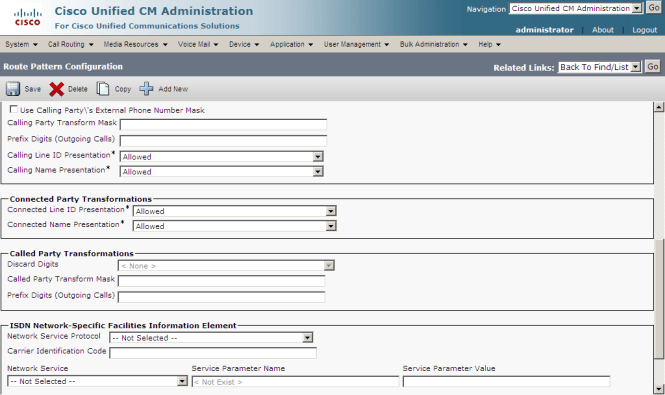
Now the SIP trunk which is acting like the bridge between the cisco and the OCS is created , ok then we need now to create a criteria where this trunk is going to be used in.  This is where is Pattern comes in where we will say if a Cisco phone set tries to dial extensions starting with 3xxx then you use the trunk which we have just created .

and from the way back from the OCS to Cisco , when the number is sent in the E164 formate with the + , the Cisco will simply ignore all that and will take only the last 4 Digits which are the 7xxx

pattern1

pattern2

Now you are ready to make the call and Enjoy the Integration via the OCS mediation server.