Lync AddressBook Process stops and starts every two minutes with Event ID 12330

At a customer site I got EventID 12330 LS Server stating that abserver worker process failed to initialize itself. A quick google search lead me to this forum article:http://social.technet.microsoft.com/Forums/en-US/ocsaddressbook/thread/6365091e-ec34-46cc-b9f7-e362b9084bb3

There MVP colleague Johan Veldhuis found a cause of this problem. The cause was that the SQL database being backed up when the Addressbook was being generated resulting in low responce time and therefore the process did not complete its update. The addressbook is being generated at 01.30 default every night, and if it can not update we will see this kind of behaviour

Resolution

  • Use the Set-CsAddressBookConfiguration cmdlet to change the generation time
  • Set-CsAddressBookConfiguration -RunTimeOfDay 23:00
  • This will set the addressbook update to happen at 11 in the night to ensure no SQL backup overlap

Detailed error messages

Event ID 12330    LS Server

Failed starting a worker process.

Process: ‘C:\Program Files\Microsoft Lync Server 2010\Server\Core\ABServer.exe’  Exit Code: C3E8302D!_HRX! (The worker process failed to initialize itself in the maximum allowable time.!_HRM!).
Cause: This could happen due to low resource conditions or insufficient privileges.
Resolution:
Try restarting the server. If the problem persists contact Product Support Services.

Event ID 12331

Worker process exited prematurely.  The process will be automatically restarted.

Process: ‘C:\Program Files\Microsoft Lync Server 2010\Server\Core\ABServer.exe’  Exit Code: 0!_HRX! (The operation completed successfully.
!_HRM!)

Slides and interview from TechDays Norway 2011 is now available online

September 7 2011 I had the honour to attend and speak at TechDays Norway 2011. My sessions where about Office 365 and more specific Exchange Online and Lync Online. The slides and interview is in Norwegian. Continue reading

Change the default Calendar AccessRight on all mailboxes to Reviewer

Back in july 2010 I created a script to set the default AccessRight to Reviewer for Exchange 2010. This was a new feature for Exchange 2010 that we could use the command Set-MailboxFoldersPermission to change AccessRights on specific folders on the server level. As the calendar is a folder we now could do this organization wide using PowerShell.

The reason for creating this script is when migrating customers in Norway most of them want to allow everyone to use side by side calendaring in Outlook and Oulook Web App. In Exchange 2003/2007 we needed to instruct users how to set Default to Reviewer. This script sets it for all users. The script works for both Exchange Online and Exchange Server 2010. For Exchange 2007 check out this post on how to do it: http://exchangeshare.wordpress.com/2008/05/27/faq-give-calendar-read-permission-on-all-mailboxes-pfdavadmin/

Get the script here: https://msunified.net/exchange-downloads/script-set-calendarpermissions-ps1/

What the script does

As the picture shows you get three menu items.

  1. Will set the permission on all users and resources
  2. Will set the permission on all users and reources created the last 30 days
  3. Will give a user you specify Editor access to a mailbox you specify
    • This is good for switchboard or secretary functions

How to run the script against an Exchange Online environment

  • Connect to Exchange Online through PowerShell Remoting
$cred = Get-Credential
$Session = New-PSSession -ConfigurationName Microsoft.Exchange -ConnectionUri https://ps.outlook.com/powershell -Credential $cred -Authentication Basic -AllowRedirection
Import-PSSession $Session
  • Set Execution Policy to unrestricted
Set-ExecutionPolicy Unrestricted
  • Run the script by copying the script, saving it as a ps1 file, navigate to it in PowerShell and start typing set-Cal and hit TAB to use TAB completion
.\Set-CalendarPremissions.ps1

Resources

Administering Microsoft Office 365 using Windows PowerShell: http://blog.powershell.no/2011/05/09/administering-microsoft-office-365-using-windows-powershell/

Deep Dive Class – Understanding, Administering and Troubleshooting Lync Server 2010

Together with Tommy Clarke I am developing a Deep Dive Class for those who wish to understand, administer and be able to do initial troubleshooting within a Lync Server environment. The course is aimed and made for administrators and will feature enterprise voice labs and troubleshooting hands on

Course overview

  • Day 1 – Understand the Lync infrastructure
  • Day 2 – Administration in Lync Control Panel and PowerShell. Enterprise Voice labs
  • Day 3 – Troubleshooting deep dive day 1: Understand the SIP protocol, ICE, STUN and TURN. Hands-on labs
  • Day 4 – Troubleshooting deep dive day 2: Troubleshooting the Lync infrastructure with hands-on labs

The first run will be held at Glasspaper in Oslo and starts september 19th. Second run starts november 28th. Visit Glasspaper to sign up: http://kursbase.glasspaper.no/Kurs/KursPomelding.aspx?KursID=1850

See this cool teaser Tommy made for his Swedish version of the course

Office 365 Features and how to configure them

There is a lot of great resources about how to deploy and configure Office 365. I will in this article try to collect those blog posts and articles I find helpful. Please notify me if I am missing out on any good resources.

Last Updated 06.09.2011

Hybrid Solutions

Administration

Exchange Online

Gartner Magic Quadrant for Unified Communications 2011

August 11 2011 Gartner released the yearly Magic Quadrant for 2011 for the Unified Communications Segment. Here is a short summary of the report

The trend within Unified Communications (UC)

  • The Enterprise UC market has matured significantly since the previous report
  • The vendors now have
    – Seamless interoperability within the suite
    – The administration is more centralized
    – The deployment is even more easy than before
  • Gartner recommends to mix vendors for best-of-breed functionality
  • Single vendor still achieves acceptable functionality

The Magic Quadrant for Unified Communications 2011

Analysis: What has happened since last year?
Compare with last years post: https://msunified.net/2010/08/09/gartner-magic-quadrant-for-unified-communications-2010/

  1. Microsoft is still in the lead having the vision and being able to execute on it
    • Releasing Lync has strengthened their telephony offering
    • Office 365 with Lync Online have given them an edge in the UCaaS segment
    • The Skype acquisition will improve the Lync family offering even more
  2. Cisco is closer than ever
    • Got a more integrated approach with their UC 8.x release
    • Successfully integrated Tandberg with existing telepresence solution
  3. Avaya has the same position as last year
    • Improved on existing functionality
    • Added the Flare gesture oriented user interface
  4. Alcatel-Lucent have jumped from challenger to the leader quadrant
    • Advanced their portfolio and have to prove that they can deliver
  5. Siemens Enterprise Communications has taken a minor step from visionary to a visionary leader
    • Advanced their portfolio and have to prove that they can deliver

My take on this

As a Microsoft Unified Communications Architect it is good to see that the vendor of my primary focus is the market leader. I agree that Lync was a big step regarding voice and that Lync Online will be a good extension of Lync on-premise. Working in Atea we focus on vendor interoperability. Having even more vendors in the leader quadrant makes it equally more difficult for our customers to find the best solution.

Gartner says:“Using multiple vendors to offer users best-of-breed functionality in all UC areas, will also allow migration of existing investments”

This statement is very true and will demand an even broader vendor focus from the partners implementing UC. I am happy that Atea have this broad scope of competency and can design and deploy best-of-breed functionality based on Microsoft, Cisco and Avaya combined with third-party solutions.

Here is what Gartner says about Microsoft

Lync 2010 offers a full suite of UC functionality. Although the real-time functions in Lync — including voice, telephony, video and related conferencing — are not as mature as other functions (such as IM/P and Web conferencing, email and UM), they have improved significantly over the previous version, which was known as Office Communications Server 2007 R2. Microsoft has developed a strong
set of technology and service partners that offer a growing ecosystem.

Microsoft offers a visionary approach for addressing enterprise communication and collaboration requirements. Enterprises looking into UC should consider the Microsoft solution and, at a minimum, understand the vision and how solutions of this type might change their business processes. Enterprises considering deploying Lync telephony and video should understand its limitations and infrastructure requirements.

Strengths
  • Microsoft has had an impressive and growing list of Lync and Exchange UM deployments, from small (fewer than 300) to midsize to very large (more than 10,000) enterprises, in both centralized and distributed configurations. Although a few of the deployments report that they have completely eliminated their PBXs, most current deployments use Lync for some employees, while other employees and functions remain on the PBX. Microsoft’s pending Skype acquisition offer, along with the Lync Online and the Office 365 cloud service offerings, suggest that Lync will mature as a comprehensive and hybrid UC product.
  • Companies report that, once deployed, Lync functions can be integrated into business processes and applications, providing new, different and effective ways to perform tasks. In some cases, these new functions are achieved by deploying Lync enhancements from a growing list of ecosystem partners.
  • Microsoft has better positioned Lync to compete in telephony markets by adding several partner telephone handsets, by bundling of basic Lync functions in the Core client access license (CAL) and by offering a specific Lync Voice CAL.
Cautions
  • Enterprise planners should understand that Lync’s telephony and video functionality is new and has seen fewer deployments than traditional PBX vendors. As a result, in many cases, a phased or trial deployment approach may be an effective way to ensure that the system and the underlying network provide the needed functionality, quality and performance.
  • Most enterprises that integrate Lync with existing PBXs have done so via direct SIP trunking. Gartner research indicates that there are few reports of successful deployments based on a tight client-side or server-side integration. The difficulty is likely to result from the newness of the solution and the competitiveness of the UC market.
  • Although the bundling associated with Lync 2010 is positive for addressing basic users, Microsoft needs to support more integrations with front-office capabilities, such as contact center and switchboard functionality, to develop this product as an overall replacement for legacy communications infrastructures.

Read the full report here: http://www.gartner.com/technology/streamReprints.do?id=1-1728DMD&ct=110823&st=sb
Also read a good review here: http://www.ucstrategies.com/Gartner_UC_Magic_Quadrant_2011.aspx
Magic Quadrant for Unified Communications: UC integration improves: http://searchunifiedcommunications.techtarget.com/news/2240074737/Magic-Quadrant-for-Unified-Communications-UC-integration-improves


How to Check if you are running Lync Server Evaluation or Licensed Version

At a customer site I was not sure if the PoC Lync environment was running Evaluation Version of the Lync Front End server or the Volume Licensed Version. They where looking to migrate from PoC to production so I had to make sure that the services didn’t stop in the middle of production.

Found a simple cmdlet to verify this: Get-CsServerVersion

  1. When run it will attempt to
  2. Read the registry value HKEY_LOCAL_MACHINE\SOFTWARE\Microsoft\Real-Time Communications\{A593FD00-64F1-4288-A6F4-E699ED9DCA35}\Type
  3. Based on that registry value, the cmdlet will then report back the version number of the software and the Lync Server licensing information the local computer and report back one of the following:
    • That the Lync Server volume license key has been installed on the computer, meaning that no updating is necessary.
    • That the Lync Server evaluation license key has been installed, meaning that the computer must be updated.
    • That no volume license key is required on the computer. Updating from the evaluation version to the licensed version is only required on Front End Servers, Directors, and Edge Servers.

What if Evaluation Version is installed and you have to upgrade to Licensed Version?

  1. Log on to the computer as a local administrator
  2. Click Start, click All Programs, click Microsoft Lync Server 2010, and then click Lync Server Management Shell
  3. In the Lync Server Management Shell, type the following command and then press ENTER:
    • msiexec.exe /fvomus server.msi EVALTOFULL=1 /qb
    • Note that you might need to specify the full path to the file server.msi. This file can be found in the Setup folder of the Lync Server Volume media installation files.
  4. After Setup finishes running, type the following from the command prompt and then press ENTER:
    • Enable-CsComputer
    • Repeat this procedure on any other Front End Server, Director, or Edge Server running an evaluation copy of Lync Server
    • This procedure should also be performed on any Branch Office Servers that were deployed by using the Lync Server media installation files

Using Get-CsServerVersion will also show you

  1. What Version Number you are running
  2. What patches has been installed
  3. For tips on determining if the latest CU has been installed see

References
TechNet: Updating From the Evaluation Version of Microsoft Lync Server 2010
TechNet: Get-CsServerVersion

Installing Server 2008 R2 with Hyper-V as LAB and UC workstation

Last week I got a new laptop (workstation), it was quite an upgrade from my previous machine sporting
– 16 GB memory
– Intel i7 quadcore
– Builtin HD cam
– 120 GB SSD

Wanting to convert it to the a powerful tool for my UC labs and my UC workshop I thought maybe installing Windows Server 2008 R2 SP1 and use it as my desktop OS. After all Server 2008 R2 share the same basecode as Windows 7. This will enable me taking advantage of all the cool server roles that are available on this platform and at the same time not installing unnecessary features. My main motivation was getting some hands-on Hyper-V and using it as my virtualization platform. Figured that would make it simpler to take advantage of the Lync labs available by Microsoft and some of my own.

Wanting to check if at all feasible I asked an open question on Twitter:

  • StaleHansen: Is there any use of installing Server 2008 on my Laptop workstation? Thinking about utilizing Hyper-V for lab’s #Server2008 #HyperV #mvpbuzz
    • bartsurminski: You can configure server 2008 r2 to act as a fully configured workstation and use Hyper-V  http://t.co/1kPBAD5
    • tomarbuthnot: Server on laptop works fine. Just no hibernation with hyper-v. In the end VMware workstation wins for me
  • StaleHansen: Thanks for the tip, but do you have sleep? Use that a lot today.
    • tomarbuthnot: No sleep with hyper-v. All power stuff disabled. Also VMware wrkstn does all a/v sharing the hardware. Tried both, vmw For me
    • gusfraser: Tried both. Win7 for hibernation & either VMWare or VirtualBox work for me. 2008 tips here http://t.co/9TJ2kml

After this conversation I found out two things

  1. Twitter works!
  2. It is doable, but need to be aware of hibernation limitation when using Hyper-V

I decided I would try, and reinstall if it was a fail. I started searching around the web for how to go about this and found a lot of good resources in addition to the ones from Twitter.

Here is my install path for Installing Server 2008 R2 as my lab and UC workstation

Installing the Hyper-V role

I have run this configuration a couple of days now and are still enjoying it. Especially enjoy dynamic memory management and having Microsoft’s full hypervizor at my fingertips when working and doing lab’s

I am also looking into using PowerShell to start the Hyper-V service and control my VM’s. Found these resources to start me in the right direction

Script to reset user policies in Lync on migrated OCS users

A while back I was migrating a pilot OCS 2007 R2 solution to a Lync production solution. After moving the users I found that they had inherited their policies regarding external access and voice from OCS. In this case I was utilizing global policies in Lync and removing the need for granting specific policies to the users.

To change this I created a simple little script to reset these policies. The script is used at your own risk.

Download it here: https://msunified.net/lyncdownloads/script-reset-userpolicies-ps1/

The Script Does the Following

  • Gets all users that have an external policy set to other than $null
  • For each user all policies are set to $null
  • Writes the users who are changed, can be exported to csv if wanted
  • Also checks if any users failed and prints their names

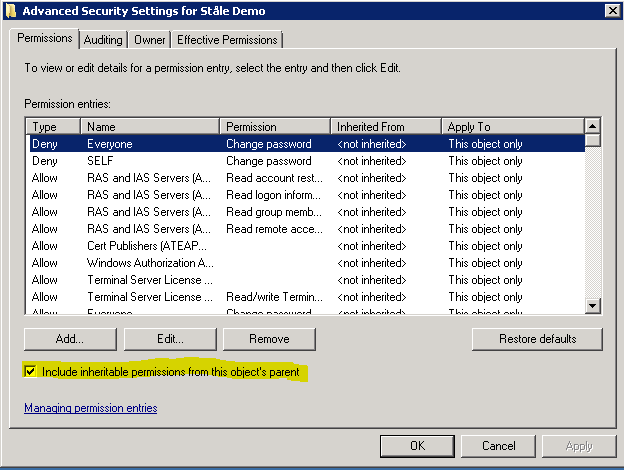
If you can’t change settings on some users it is probably because of permission issues on the user object in AD. To check if that is the case do the following:

  • Open Active Directory Users and Computers (dsa.msc) from the Lync Front End server or any other server with ADDS
  • Go to View and select Advanced Features

  • Now find the user with the permission issues and select Properties
  • Select the security pane and click on Advanced
  • Make sure that “include inheritable permissions from this object’s parents” are checked

  • If not check it and OK out of there
  • Wait for AD replication and try again

This is an old Exchange AvtiveSync and OWA issue where users could not access these features. The affected users where probably a member of the below groups or have been at some point.

Found a good description of what can make this occur at: http://alanhardisty.wordpress.com/2010/03/05/activesync-not-working-on-exchange-2010-when-inherit-permissions-not-set/

The reason this happens is because Active Directory uses something called the AdminSDHolder to define what permissions the default protected security groups receive. Whilst you can change the inherited permissions, a process called SDPROP will run, by default every 60 minutes on the domain controller that holds the PDCe role. It will check the ACL of the protected groups and reset their inherited permissions and the users within the groups, with what has been defined by the AdminSDHolder object.

Microsoft’s recommendation and best practice is that if you are a domain administrator that you have 2 accounts. One for your everyday user which is restricted in the same way that every other user is and a second for your administration role.

The built in groups that are affected with Windows 2008 are:
Account Operators
Administrators
Backup Operators
Domain Admins
Domain Controllers
Enterprise Admins
Print Operators
Read-only Domain Controllers
Replicator
Schema Admins
Server Operators

The built in users that are affected with Windows 2008 are:
Administrator
Krbtgt

My Lync presentations at TechNet Live april 2011 available at TechNet Edge

This year I got the honor to be a speaker at the business value track and the technical track at TechNet Live in Norway march 31 . I talked about Unified Communications in general and Lync Server 2010 as a PBX replace. TechNet Live is hold in the four largest cities in Norway every year and this year it was about 1000 attendees for all the cities. Below are the Screencasts from my sessions in Oslo. The presentations are in norwegian. Continue reading