This year I got the honor to be a speaker at the business value track and the technical track at TechNet Live in Norway march 31 . I talked about Unified Communications in general and Lync Server 2010 as a PBX replace. TechNet Live is hold in the four largest cities in Norway every year and this year it was about 1000 attendees for all the cities. Below are the Screencasts from my sessions in Oslo. The presentations are in norwegian. Continue reading
Lync Server 2010
Lync Server 2010 Troubleshooting Tips

Last updated: 24.10.2012
When deploying Lync Server 2010 you will most likely come across a lot of strange behaviour and stuff that don’t work as expected due to configuration errors or environmental issues. I will in this post try to collect the solutions and articles I find and update along the way, to have troubleshooting tips in one place. Please let me know if any good blog posts or articles that solve some specific problems is not listed here.
General Troubleshooting
Troubleshooting Lync may be a daunting task since there is a lot of elements that is involved in a deployment. Over the years troubleshooting OCS and Lync I have found a routine for eliminating problems. If you have deployed Lync Server and there is connectivity issues or some features not working I usually go about it in the following order: Continue reading
Topology Basics You Must Know Before Planning for Lync Server 2010
In preparation for the Exam 70-665: PRO: Microsoft Lync Server 2010, Administrator I found this article on TechNet useful: http://technet.microsoft.com/en-us/library/gg398552.aspx. It’ s about need to know basics and numbers when planning your Microsoft supported Lync design. Here is a summary with the numbers you must know before taking the Lync PRO Exam:
Site Types
- Central Site
- Contains at least one Front End Pool or Standard Edition Server
- Is mandatory in a Lync Server Deployment
- Branch Site
- Is connected to exactly one Central Site and contain one of the following
- A PSTN gateway and, optionally, a Mediation Server.
- Designed for branch sites with between 1 and 25 users
- Survivable Branch Appliance (SBA)
- Is an industry-standard blade server with a Microsoft Lync Server 2010 Registrar and Mediation Server running on Windows Server 2008 R2
- The SBA also contains a PSTN gateway
- Designed for branch sites with between 25 and 1000 users
- Survivable Branch Server (SBS)
- Is a server running Windows Server that meets specified hardware requirements, and that has Lync Server 2010 Registrar and Mediation Server software installed on it
- Does not contain a PSTN gateway
- Designed for branch sites with between 1000 and 5000 users
Server Roles
- Standard Edition Server
- Uses local SQL Express database to host users
- One Standard Edition server supports as many as 5,000 users
- In virtual deployments this is reduced to about 2,500 users
- Can be part of a backup pool topology
- Front End Server and Back End Server
- Front End pool is a set of Front End Servers, configured identically, that work together to provide services for a common group of users
- One Front End pool in the deployment also runs the Central Management Server
- The Central Management Server also provides Lync Server Management Shell and file transfer capabilities
- Back End Servers do not run any Lync Server software
- Can be a single SQL server, but its recommended to run a cluster of two or more
- Information stored in the Back End Server databases includes
- presence information
- users’ Contacts lists
- conferencing data including persistent data about the state of all current conferences
- conference scheduling data
- Front End Server scalability
- One Front End Server for every 10,000 users homed in the pool
- In virtual deployments this is reduced to about 5,000 users
- The maximum number of users in one Front End pool is 80,000, if more than this, deploy an additional pool
- Front End pool is a set of Front End Servers, configured identically, that work together to provide services for a common group of users
- A/V Conferencing Server
- It can be collocated with Front End Server, or deployed separately as a single server or A/V Conferencing Server pool
- One A/V Conferencing Server deployed as a single server for each 20,000 users at a site
- EDGE Server
- Server enables your users to communicate and collaborate with users outside the organization’s firewalls
- Can be deployed with
- One external IP
- Three external IP’s
- Can be behind NAT
- But when in HA scenario, AV EDGE need to be directly routable
- Deploy one Edge Server for every 15,000 users you expect to access a site remotely
- In virtual deployments this is reduced to about 7,500 users
- Mediation Server
- Mediation Server translates signaling and, in some configurations, media between your internal Lync Server infrastructure and
- Public switched telephone network (PSTN) gateway
- IP-PBX
- Session Initiation Protocol (SIP) trunk
- Estimating Voice Usage and Traffic
- For Light traffic (one PSTN call per user per hour) figure 15 users per port
- For Medium traffic (2 PSTN calls per user per hour) figure 10 users per port
- For Heavy traffic (3 or more PSTN per user calls per hour) figure 5 users per port
- Mediation Server translates signaling and, in some configurations, media between your internal Lync Server infrastructure and
- Monitoring Server
- Monitoring Server collects data about the quality of your network media and collects call error records (CERs), which you can use to troubleshoot failed calls
- can support up to 250,000 users if not collocated with Archiving Server
- If collocated, it can support up to 100,000 users
- Archiving Server
- Enables you to archive IM communications and meeting content for compliance reasons
- If you do not have legal compliance concerns, you do not need to deploy Archiving Server
- Archiving Server can support up to 500,000 users if not collocated with Monitoring Server
- If collocated, it can support up to 100,000 users
- Director
- Can authenticate Lync Server user requests, but do not home user accounts, or provide presence or conferencing services
- Most useful in deployments that enable external user access, where the Director can authenticate requests before sending them on to internal servers
- Directors can also improve performance in organizations with multiple Front End pools
- Deploy one Director for every 15,000 users who will access a site remote
- In virtual deployments this is reduced to about 7,500 users
Dedicated Lync Server 2010 Mediation Server with two NIC’s
Background
Recently I implemented a dedicated Lync Mediation server with two NIC’s. In this case I had to use a dedicated Mediation server because the IP Trunk provider was direct SIP. The Mediation server came with one NIC in the server subnet and the other NIC in the telephony subnet.
The problem
After implementing the Lync Topology correct and validated ok, we had one way audio with PSTN calls or no audio at all. All the calls got connected though. I started deep diving into logs and network configuration. While searching the web I found some very good articles about this regarding OCS 2007 R2. I found that there is little or no change in how to configure the Lync Mediation server versus configuring the OCS Mediation server network vise.
The Symptoms
During troubleshooting I saw the following errors:
- Event ID 25073
- The Mediation Server service has received a call that does not support comfort noise from the Gateway peer
- In the SDP packet on the gateway side we saw that RTP traffic was proposed to go over the server subnet IP and not the Gateway subnet IP
- No audio could be established because of routing issues
- RTP traffic from the gateway came from an other IP than the SIP IP
- The Gateway had a media proxy with a different IP than the SIP IP
Reading material
I found these article good reading during the troubleshooting
OCS Mediation Server NIC Configuration: http://blogs.pointbridge.com/Blogs/schertz_jeff/Pages/Post.aspx?_ID=55
Forum discussion about two NIC’s in same subnet: http://social.microsoft.com/Forums/en/communicationsservertelephony/thread/6abb5010-5fd3-4940-8b91-0d2b0184a9fe
Communications Server Mediation Server: Dual NIC Issue: http://technet.microsoft.com/en-us/library/ff518437.aspx
The solution
Make sure the following is true
- Default gateway is only configured on the NIC in the server subnet, under IPv4 IP configuration
- Use no default gateway on the Voice Gateway NIC
- Make sure that the Voice Gateway NIC is on top when running ipconfig
- If its not, make it so
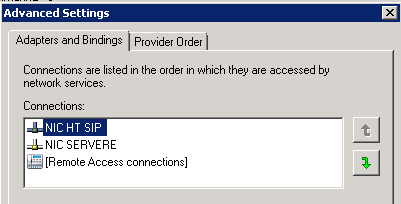
- Add static persistent routes for both the SIP and RTP IP against the correct NIC id
- route ADD 77.88.99.80 MASK 255.255.255.255 10.150.80.241 IF 13 -p
- route ADD 77.88.99.83 MASK 255.255.255.255 10.150.80.241 IF 13 -p
- I was also considering the Strong Host model, but that is when several NIC’s need to share a default gateway, don’t think it applies here
- but just in case, here is the commands to disable it
- netsh interface ipv4 set interface 13 weakhostsend=enabled
- netsh interface ipv4 set interface 13 weakhostreceive=enabled
- Read this article to learn more about it: http://blogs.pointbridge.com/Blogs/schertz_jeff/Pages/Post.aspx?_ID=78
- but just in case, here is the commands to disable it
Conclusion
In this case it was the missing route to the RTP media proxy IP that was missing. The symptom of the calls being established but no audio is evidence of that SIP traffic is going through ok, but RTP traffic is not being routed correct. The wrong IP being suggested was also evidence towards routing issues. Adding the missing route solved the problem. The Event ID 25073 also disappeared when the routing issue was resolved.
Regarding dedicated Lync Mediation Servers they should have a single NIC when the Voice Gateway is in the same subnet as the Lync Server themselves. Two NIC’s should only be considered when they can be placed in totally different subnets.
Script to enable Global Voice Routing in Lync Server 2010
With Lync Server 2010 more and more deployments involve Enterprise Voice and Pstn access. When implementing in pilots and single site environments my customers tend to want everyone activated being able to dial to the Pstn network regardless of location or position.
With this in mind I have created a script to easily implement appropriate Nomralization Rules, Pstn Usage, Route with Gateway and Voice Policy without any typos. Since all this is intended for global use and the scope is global, all users get access to the Dial Plan and Route. All calls and numbers are routed through a single Gateway.
The script is run at your own risk, tips and feedback is most appreciated
View and download the script here: https://msunified.net/lyncdownloads/script-set-globalvoicerouting-ps1/
Intended Scenario
- One CentralSite
- One PstnGateway
- All Enterprise Voice users will be able to call
- All previous configuration will be removed
To have a clean as possible configuration some existing default configuration is removed
- The “Prefix All” Normalization Rule on the Global Dial Plan
- The Local Route under Routes is removed
- All the default PstnUsage records are removed
- Running the script several times does no harm, all error messages are suppressed
The Script creates the following
- Four Norwegian Nomralization Rules under the Global Dial Plan
- No need to Grant users with usage
- Just change and adapt them to your own country/environment before running the script
- Creates PstnUsage named Global
- Edits the Global Voice Policy and adds PstnUsage Global
- Finds the PstnGateway configured in the Topology Builder
- Only one is added
- Creates a new Route named GlobalRoute and adds Global as PstnUsage and the PstnGateway found earlier
- Creates a VoiceTestConfiguration for one of the normalization rules
- Runs the Test
- Displays the result
Screenshot

Lync 2010 Downloads
 Official download pages:
TechCenter Lync Downloads Server and Client Update Downloads
Latest CU downloads
Lync Server Front End: Lost connection to the Web Conferencing Edge Server
I have seen this problem in a couple of deployments now and have decided to share this information since there is not much about it on the web.
The problem
Event ID 41024 – Lost connection to all Web Conferencing Edge Services
Event ID 41024 – Lost connection to the Web Conferencing Edge Server
Event ID 41025 – Connection to the Web Conferencing Edge Server has been restored
These Event ID’s appears every five minutes on the Lync Front End Server, but not in all implementations. I don’t know why it is in only some implementations.
The Resolution
Disable IPv6 on the Front End server. When implementing Exchange 2007 and 2010 we often came across a similar problem where the resolution was to disable IPv6. Disabling IPv6 has cleared the Event ID errors in the cases I have seen. To disable IPv6 properly don’t just uncheck IPv6 on the network adapter, but do it in registry and reboot. See this KB article for how to disable IPv6 properly: http://support.microsoft.com/kb/929852
Screens of the exact Event ID’s


Script to find available telephone numbers in Lync Server 2010
Having worked on a couple of Enterprise Voice deployments since the launch of Lync Server 2010 I have been missing a feature that I honestly thought would be incorporated by launch. It is the ability to find unused available numbers in a given number range assigned to the Lync Server based on Unassigned Numbers. I even hoped it would be possible to assign a teluri to users through a drop down list in the Silverlight GUI since the information is available in the server. I hope this will be available in a later Service Pack or Cumulative Update.
Since this is a feature I really want, I have tried to create a PowerShell Script to find out how many numbers are available in any given number range and what they are. First of all I want to declare that I am a PowerShell novice so my syntax may not be that optimized. The script works, though there’s a lot of variables and loops that I am sure could be done better. The script does the following:
- It goes through each entry in Unassigned Phone Numbers that needs to be populated with all numbers series available to the Lync Server
- See TechNet on how to do it: http://technet.microsoft.com/en-us/library/gg412748.aspx
- Also see TechNet on how to configure an Announcement required by Unassagnied Numbers: http://technet.microsoft.com/en-us/library/gg412783.aspx
- Then it gets all teluri’s for all the users, dial-in conferencing and Exchange UM contacts
- I didn’t find the response group command to get the teluri while I was at it, will add this in an update
- Then the string gets “washed” for “tel:+47” where 47 is the hardcoded region code for Norway
- The string also get “washed” for any extension numbers
- After that a new string gets created to get rid of property types and so on
- I use Compare-Object to compare the Unassigned Number array with the used numbers
- Run a check to find what numbers where not used and count them
- Then I find out what the total number of unused numbers are and write the output

I hope this script will come useful to anyone who needs this feature and that others can use this to and adapt it to their needs. Please share any improvements that could be made to the script. Enjoy!
https://msunified.net/lyncdownloads/script-list-unusednumbers-ps1/
Error 0x80070020 when you try to run Setup Lync Server Components
Recently I had an error during the setup of Lync Server Components regarding Enabling of the web site “Lync Server Internal Web Site”. A fast google search indicated it was something about IIS not being able to start the default website because of port 80 or 443 was being used by another program. To find out what software was using the ports I did the following, solution found in this KB article: http://support.microsoft.com/kb/973094
Run the following command from a command prompt to find the PID of the process which is using TCP port 80 and/or 443.
netstat -aon | find “:80”
netstat -aon | find “:443”
You will see an output similar to the following. Remember the actual PID will vary from case to case.
TCP 0.0.0.0:80 0.0.0.0:0 LISTENING 3604
TCP 0.0.0.0:443 0.0.0.0:0 LISTENING 3320
Now using Task Manager you can easily find out to which process the above PID belongs and take appropriate action.
In my case I was using TeamViewer to remote in to the server during installation. Closing TeamViewer and getting the customer to run the installation solved the problem.
Here is the exact error message I got in the logs
Error: The process cannot access the file because it is being used by another process. (Exception from HRESULT: 0x80070020)
▼ Details
└ Type: FileLoadException
└ ▼ Stack Trace
└ at Microsoft.Web.Administration.Interop.IAppHostMethodInstance.Execute()
at Microsoft.Web.Administration.ConfigurationElement.ExecuteMethod(String methodName)
at Microsoft.Web.Administration.Site.Start()
at Microsoft.Rtc.Management.Deployment.Roles.WebServices.LocalActivate(IService service, Computer computer)
at Microsoft.Rtc.Management.Deployment.Core.Service.LocalActivate(Computer computer)
at Microsoft.Rtc.Management.Internal.Utilities.LogWriter.InvokeAndLog[T](Action`1 action, T arg)
└ Error: An error occurred: “System.IO.FileLoadException” “The process cannot access the file because it is being used by another process. (Exception from HRESULT: 0x80070020)”
Produced two webcasts with Microsoft about Lync
I sat down with Anders Borchsenius who is IT-Pro Community Manager at Microsoft Norway and talked about Microsoft Lync. We recorded two sessions. The first about whats new in Microsoft Lync. The other webcast is about how to get started with Lync and how to use my blog as a starting point. The webcasts are in Norwegian.
 msunified.net