Error Opening EMC in Exchange 2010

[tweetmeme source=”stalehansen” only_single=false]This post is a note to self to remember this the next time I encounter a similar problem. Article first published: http://telnet25.wordpress.com/2010/02/22/an-error-caused-a-change-in-the-current-set-of-domain-controllers-it-was-running-command-get-federationtrust/

Problem: Receiving following error on Exchange 2010 server after opening EMC and expending Mailbox tab under organization configuration. An error caused a change in the current set of domain controllers. It was running command ‘Get-FederationTrust”

image

Possible causes:

To be honest first thing I checked was to make sure Exchange server is able to talk to all domain controllers as its configured on its TCP/IP properties.Also as always check to see anything catches your attention under application logs. Fair enough I was able to locate the event log “2080” MsExchangeADAccess” was showing me one DC only, however the TCP/IP stack was configured to talk to secondary DC.

image

Make sure Exchange is able to talk to all DC’s within its “Site”. Above example the second DC was not even discovered by MSExchange AD access, due to replication problems existed among the DC’s in the  site where exchange is residing. After fixing the relocation issues and restarting MSExchangeADTopology service took care of the error.

Note:

Some other people who had same error assumed to fix this issue by deleting the local profile ( corrupted profile) for the user account they logged into Exchange server. So if the above solution does not work, try this:

This error is actually a false error, and is caused by GUI caching, more specifically MMC caching. This occurs when a DC (domain controller) that is either unreachable or has changed in some way is still cached by the MMC applet. To fix this issue by removing the cache and basically resetting the MMC applet do this:

 Delete this file: “c:\users\<specific user>\appdata\roaming\microsoft\mmc\Exchange Management Console

Source: http://trycatch.be/blogs/pdtit/archive/2010/02/04/an-error-caused-a-change-in-the-current-set-of-domain-controllers-exchange-2010.aspx

New Features in Exchange 2010 SP1 and How to Configure Them

[tweetmeme source=”stalehansen” only_single=false]Lately I have seen a lot of good articles about what the new and improved features of Exchange 2010 SP1 are and also a lot about how to configure these features. This post is written while Exchange 2010 SP1 is still in Beta so the information provided may be a little off from the released version later this year. I wanted to collect the posts I find interesting here so I have them all in one place when I will deploy SP1 to my customers.

Here is the main new features in Exchange 2010 SP1 and how to configure them

 Some minor changes in how to configure some features

You can find a longer list of new features here: http://exchangepedia.com/2010/06/released-exchange-sever-2010-sp1-beta.html
TechEd 2010 Interviews with folks from the Exchange Product group about SP1: http://blogs.msexchange.org/walther/2010/06/16/teched-2010-interviews-with-folks-from-the-exchange-product-group/

Exchange 2010 RTM and SP1 OWA Integration With OCS 2007 R2

[tweetmeme source=”stalehansen” only_single=false]I recently integrated Exchange 2010 RTM OWA with OCS 2007 R2 for chat and presence. Having read some blog posts about how to implement the feature I decided to blog how I got this feature working based on these blogs and my own findings. I will cover the steps for both the Exchange 2010 RTM and SP1 versions since the steps are different.

Prerequisites

  1. Download and install OCS 2007 R2 Web Trust Tool on the Exchange 2010 server
    1. http://www.microsoft.com/downloads/details.aspx?displaylang=en&FamilyID=ca107ab1-63c8-4c6a-816d-17961393d2b8 
    2. Locate and install the following files in elevated mode by running cmd.exe as administrator
      • vc_redistx64
      • UCMAredist.msi
      • CWAOWASSP.msi
  2. If the Exchange 2010 server is running on Server 2008 R2 you also need to install the latest cumulative hotfix update for OCS 2007 R2 on the Exchange server
    1. http://www.microsoft.com/downloads/details.aspx?displaylang=en&FamilyID=b3b02475-150c-41fa-844a-c10a517040f4
    2. Download and run ServerUpdateInstaller.exe
    3. Also download the latest update for UCMAredist that is not included in CU5
    4. Reboot the server

Configuring Exchange 2010 RTM

NOTE: The below steps need to be done on all Exchange 2010 CAS servers in you deployment

  1. Download and run the PowerShell Script found in the below link
    1. https://msunified.net/exchange-downloads/script-imexintegration-ps1/
    2. The script will not configure anything
    3. It takes backup of web.conf and  generates the configuration you manually need to add the web.conf file
    4. The script makes it easy to generate the correct syntax for populating the below keys 
  2. Navigate to the web.conf file
    1. C:\Program Files\Microsoft\Exchange Server\V14\ClientAccess\Owa\web.conf
    2. Edit the file and search for the string IMPoolName
    3. Replace the three “add key” strings with the ones provided with the script
  3. In Exchange Management Shell run the following command to configure OWA Virtual Directory
    • Get-OwaVirtualDirectory -Server "CasServer" | Set-OwaVirtualDirectory -InstantMessagingType 1
      • NOTE: The RTM documentation states OCS, but that don’t work. Use 1 as InstantMessagingType
  4. Run IISreset in PowerShell

Configuring Exchange 2010 SP1

The Exchange 2010 SP1 guide is based on this great post written by Martin Sundström: http://msundis.wordpress.com/2010/06/21/integrate-ocs-2007-r2-with-exchange-server-2010-sp1-owa/ The configuration on Exchange is now moved from web.conf to the per server OWA Virtual Directory. I will definitely create a script automating the below process when I get more hands on :)

NOTE: The below steps need to be done on all Exchange 2010 CAS servers in you deployment 

  1. Get the active Exchange 2010 certificate using this command in Exchange Management Shell 
    • Get-ExchangeCertificate | Where-Object {$_.Services -match "IIS"} | Get-ExchangeCertificate | fl thumbprint,subject
      • This command gets the active certificate on the local server, because only one certificate can have IIS as service at a time
  2. Use the thumbprint and OCS pool FQDN in the command below
    • Get-OwaVirtualDirectory -Server "CasServer" | Set-OwaVirtualDirectory -InstantMessagingCertificateThumbprint 4DC1EE3506E06E971FF82AC8DD60015EAC11B21E -InstantMessagingServerName ocspool01.domain.local -InstantMessagingType OCS -InstantMessagingEnabled $true
      • NOTE: This time we use OCS as InstantMessagingType
  3. Run iisreset

Configuring OCS 2007 R2

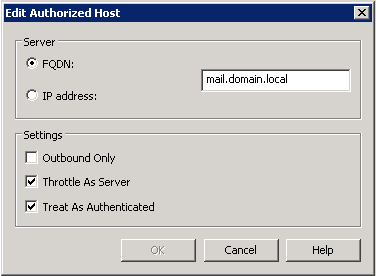
In order to allow the Exchange 2010 server to communicate with OCS using SIP containing presence and chat you need to add every Exchange 2010 CAS servers as authorized hosts on OCS.

  1. On your OCS R2 Pool server configure authorized host
    • NOTE: Your user needs to be member of the RTCUniversalServerAdmins group
  2. Open Office Communications Server R2 under Administrative Tool
  3. Expand forest and Enterprise pool or Standard Edition Servers depending on you deployment
  4. Right click your pool and choose properties->Front End Properties
  5. On the Hosts Authorization tab
  6. You need to add the Client Access server FQDN and configure as the below image 
    • NOTE: This is the FQDN of your subject name (CN) on the certificate used on the CAS server


Troubleshooting the Installation (RTM)

Next are a few troubleshooting steps that can assist with some of the more common problems encountered with Exchange/OCS integration. I found these valid troubleshooting steps on Rand Morimoto’s post: http://www.networkworld.com/community/node/47348

Configuring the Firewall on the CAS Server

If the Client Access Server has the Windows Firewall enabled, it might need an exception to enable OCS 2007 R2 to communicate with it. To create the exception, perform the following steps:

  1. From the Control Panel, open Windows Firewall 
  2. On the left side of the Windows Firewall window, click .“Allow a Program Through Windows Firewall.
  3. Click Add Program; then click Browse.
  4. Browse to C:\Windows\System32\inetsrv and select w3wp.exe.
  5. Click Open and then click OK twice to apply changes and close the window. Be sure to perform this step on all CAS servers with IM integration enabled.

User Configuration

  • Before the user community can utilize the IM features, they must be “provisioned” for Office Communications Server R2 and must be enabled for Enhance Presence. When the user is initially enabled on OCS 2007 R2, he will automatically be enabled for Enhanced Presence.
  • Users must also have a valid SIP proxy address for the OWA IM integration component to enable the IM Integration UI.
  • When attempting to view the Instant Messaging contact list, a user might receive a notification that states
    • Instant Messaging Isn’t Available Right Now. The Contact List Will Appear When the Service Becomes Available.
  • If this occurs, perform the following steps:
    1. Using the same user account, confirm that you can access the IM services using the Office Communicator 2007 R2 client.
    2. If functional, confirm that the OCS Server name is properly entered in the Web.Config file of the CAS server.
    3. Also confirm the configuration of the Authorized Hosts option on the OCS pool contains all IM Integrated Client Access Servers.

OWA Certificate Error

If OWA cannot locate the certificate, an error stating The Local Certificate Specified Was Not Found in the Store for the Local Computer appears.

In this case, confirm that the value of the OCSCertificateIssuer and OCSCertificateSerialNumber fields in the Web.Config file are correct. Also ensure that there are blank spaces between every two characters in the serial number to separate octets in the string.

References

TechNet: http://technet.microsoft.com/en-us/library/ee633458%28EXCHG.140%29.aspx
Chris and Robin’s Technology blog: http://chrislehr.com/2009/11/implementing-integrated-ocs-in-owa-2010.htm
Martin Sundström: http://msundis.wordpress.com/2010/06/21/integrate-ocs-2007-r2-with-exchange-server-2010-sp1-owa/
Rand Morimoto: http://www.networkworld.com/community/node/47348

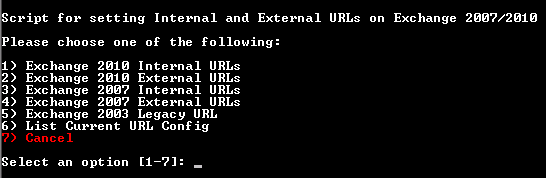
Script for Configuring Exchange 2010 Internal and External URLs

[tweetmeme source=”stalehansen” only_single=false]In Exchange 2010 you need to set the Internal URLs for various services on the Client Access Server. Outlook 2007/2010 uses Autodiscover to connect to the Exchange server. If the Internal URLs are configured wrong you could get certificate errors when logging on to Outlook as well as errors when using free busy and oof services internally. Also when deploying Outlook Anywhere you need to configure the External URLs correct for the same services to work.

This script may come in handy in the following scenarios:

  • Initial configuration, avoid typos
  • Expansion in the infrastructure with load balanced CAS
  • Change in internal FQDN if you change certificate name
  • When you have a total disaster on site 1 and need to fail over to a second site with a passive DAG server that holds all server roles

Please keep in mind:

  • The Script is developed for Exchange 2003 coexistence and migration scenarios
  • The script must not be run in an Exchange 2007 coexistence and migration scenario
  • For InternalURL the script will look for a CASArray (It is recommended to create a CASArray in any scenario)
  • The script assumes there is only one ADsite

About the script:

  • First you will be presented with som choices on what to do
  • InternalURL will autoconfigure based on CASArray
  • ExternalURL will prompt for public FQDN and assume one external address
    • Will use same FQDN for OWA, ActiveSync, Autodiscover and so on
  • Will prompt for Exchange 2003 URL
  • All configuration will output the changes made


Update 27.05.2010:

  • Added support for Exchange 2007 and Exchange 2007/2010 coexistence scenarios.
  • The script will check for Exchange version before applying any settings.
  • When applying Exchange 2010 Internal URL the script will match the CAS servers to the correct CASarray in the correct ADsite


Update 28.05.2010

  • Added option for checking current configuration
  • Corrected some errors on the Exchange 2007 configuration and listing of URLs
  • Tested in Exchange 2007 only deployments and Exchange 2010 and 2007 coexistence deployments

 The Script can be viewed and downloaded here: https://msunified.net/exchange-downloads/script-internalexternalurls-ps1/

My TechNet Live Exchange 2010 Screencasts are Now Online at TechNet Edge

[tweetmeme source=”stalehansen” only_single=false]This year I got the honour to be the speaker at the Exchange track on TechNet Live in Norway. TechNet Live is hold in the four largest cities in Norway every year and this year it was about 1800 attendees for all the cities. Below are the Screencast from my sessions in Bergen. The presentations are in norwegian.

Session 1: Exchange 2010 Installation and Migration. Talks about:

  • Some new features in Exchange 2010
  • How to prepare before an installation
  • How to Migrate to Exchange 2010
  • How Client Access coexistence works
  • Gotchas during the first Exchange 2010 migrations
  • Download PDF

Session 2: Exchange 2010 Performance and Scalability. Talks about:

  • Memory and Processor requirements
  • Virtualization
  • Planning for Scalability
  • Some new High Availability features
  • Walks through some new HA scenarios for Exchange 2010
  • Download PDF


No Audio and Video with external clients when OCS R2 EDGE is behind NAT

[tweetmeme source=”stalehansen” only_single=false]I had a mind boggling troubleshooting session the other day where the problem was audio and video through consolidated OCS EDGE server behind NAT’ed in interfaces. After running Network Monitor and analyzing the SIPlogs on all involved machines:

  • Inside Client
  • Customer OCS Front End
  • Customer OCS EDGE
  • Outside Federated Client
  • Firewall

The Symptoms

  • SIP, Presence and IM working fine
  • The call gets connected but fails with no media connectivity after just a few seconds
  • No RTP traffic on any machine in Network Monitor
  • In the SIP log we could see that the client used NAT AV EDGE IP, not public IP
    • Therefore no media connectivity because the external client and external EDGE cant reach that IP
    • When Internal Client and Federated Client was on the same subnet audio and video worked fine

The Solution

Read Rick Varvel’s blog post up and down and studied all the fine print and found that the Internal Client has to be able to resolve the Public IP of the AV EDGE server. This is an issue when the internal DNS is authoritative for the external domain without all external entries. 

Below are the complete steps to set up OCS 2007 R2 EDGE when behind NAT

  1. Implement OCS 2007 R2 EDGE with at least two NIC’s
    • One Internal
    • One or more External
    • When you have more than one external NIC beware of the Strong Host Model feature in Server 2008 where NIC’s don’t share gateways and media flow works different
  2. Configure the firewall to perform DNAT inbound and SNAT outbound for the A/V Edge external interface
  3. Configure the Internal NIC with an IP address and FQDN that is resolvable from you internal subnets
  4. Configure the External NIC’s with NAT’ed IP addresses, not the public ones because you are behind NAT
  5. Make sure that the OCS 2007 R2 EDGE server can resolve all the external FQDN’s with the public IP addresses
    • Add them in the external DNS
    • Or add them in the local hosts file
  6. Make sure that the A/V EDGE public IP and FQDN is resolvable from the Internal Client subnets
  7. Make sure that the OCS 2007 R2 EDGE server knows it is behind NAT
    • On your edge server goto: start->run-> type in compmgmt.msc
    • Expand Services And Applications
    • Expand Office Communications Server
    • Right-click the OCS EDGE entry and choose properties
    • Under A/V EDGE server make sure that the “External IP address is translated by NAT” check mark is checked
    • Press apply and exit
    • Restart the OCS EDGE services

Resources

Rick Varvel: http://blogs.technet.com/rickva/archive/2009/04/03/Configuring-A_2F00_V-Edge-Service-for-NAT.aspx
Mino – The UC Guy: http://theucguy.wordpress.com/2009/03/04/the-ocs-2007-r2-edge-and-nat/
Elan Shudnow – Audio/Media Negotiation: https://msunified.net/2009/08/30/office-communications-server-2007-r2-audiomedia-negotiation/
Inside OCS – Ports required for OCS 2007 R2 EDGE: http://blog.insideocs.com/2008/08/20/what-ports-do-i-need-to-open-on-my-firewall/
msunified.net – Single consolidated EDGE server clarified: https://msunified.net/2009/07/01/single-consolidated-edge-server-clarified/

Installing Exchange 2007/2010 Update Rollups

[tweetmeme source=”stalehansen” only_single=false]Installing Update Rollups for Exchange 2007 and Exchange 2010 is not always a walk in the park. I have customers who ended up with no Exchange files, WebAccess files not present or all Exchange services set to disabled. The common solution is to run the Update Rollup in elevated mode and just re-run the Update Rollup. Jan Egil Ring has posted a comprehensive best practice to running Update Rollups and also provide som troubleshooting tips in this blog article: http://blog.powershell.no/2010/04/20/installing-exchange-server-20072010-update-rollups

General guidelines for installing Update Rollups in Exchange Server 2007/2010:

  1. Use elevated Administrator-privileges when running the installation either from Windows Update or by manually downloading the installation file.
  2. Verify that all Execution Policies are set to “Undefined”.
  3. Uninstall any interim Exchange hotfixes installed since the last Update Rollup.
  4. Verify that the ExchangeSetupLogs directory are present on the system-drive. The installer uses this directory for saving service-state information.

PowerShell Script: Bhargav Shukla has created a PowerShell sctipt to check for current Exchange 2007/2010 patchlevel: https://msunified.net/exchange-downloads/script-exchangeupdaterollups-ps1/

Installing OCS 2007 R2 Prerequisites on Windows Server 2008 R2

[tweetmeme source=”stalehansen” only_single=false]Server 2008 R2 is now supported by OCS 2007 R2. As a follow-up to my post on Installing OCS 2007 R2 Prerequisites on Windows Server 2008 I will in this post describe how you can install OCS 2007 R2 prerequisites on Server 2008 R2. While you need to install the same prerequisites on both OS’ there is a change in what commands you use and you also need to prepare the server in a different way when you are installing on Server 2008 R2

Part one – Before you install OCS 2007 R2 binaries

  • Open powershell as administrator and run the following commands
    • Import-Module ServerManager
    • Add-WindowsFeature as-net-framework,desktop-experience,telnet-client
      • This installs the following features
        • [As-Net-Framework] – .Net Framework 3.5 SP1
        • [Desktop-Experience] – Desktop Experience
        • [Telnet-Client] – Telnet Client (recommended not required)
  • Request the Hotfix that is described in KB975858 for Windows Server 2008 R2
    • You need to request it, then you recieve a link by email, from there you can download and install it
  • Install the prerequisites for the specific role as described in part three
  • Run Windows Update untill everything is updated
  • Install the OCS 2007 binaries for the role you are installing

Part two – After you install OCS 2007 R2 binaries

  • When you try to activate OCS 2007 R2 Standard Edition, Enterprise Edition or Edge Server role when all windows updates are installed it fails
    • Download and install OCSASNFix.exe
    • Re-run the activation wizard
  • Download and install the latest cumulative updates for OCS 2007 R2
  • If you have XP or Vista clients in your enterprise change the default NTLM security settings from 128-bit encryption to “no minimum”
    • Start secpol.msc on a Windows Server 2008 R2 operating system server.
    • Click to select Local Policies and then click Security Options node.
    • Make sure that the following values of the policies are set to “No Minimum.”

Part three – Commands to install the necessary prerequisites for OCS 2007 R2 on Windows Server 2008 R2

Front End on Windows Server 2008 R2

  • Import-Module ServerManager
  • Add-WindowsFeature web-windows-auth,web-mgmt-compat,web-mgmt-console,web-http-logging,msmq-server,msmq-directory,was-process-model,was-config-apis, web-static-content,rsat-adds

Installs the following components:

  • [Web-Windows-Auth] – Windows Authentication
  • [Web-Mgmt-Compat] – IIS 6 Management Compatibility
  • [MSMQ-Server] – Message Queuing Server
  • [MSMQ-Directory] – Directory Service Integration
  • [RSAT-ADDS] – Active Directory Domain Services Tools
  • [WAS-Process-Model] – Process Model
  • [WAS-Config-APIs] – Configuration APIs
  • [Web-Mgmt-Console] – IIS Management Console
  • [Web-Http-Logging] – HTTP Logging
  • [Web-Static-Content] – Static Content

NOTE: If you are to run the create pool wizard from the Front End server against SQL 2008, you also need the MS SQL Native Client: X64 Package (sqlncli.msi) – 7963 KB
Also check out this post of mine whether to run create pool on OCS Front End or Back End SQL server: https://msunified.net/2009/08/11/create-pool-%e2%80%93-run-on-ocs-or-sql-server/

Office Communicator Phone Edition deployment on Windows Server 2008

  • Import-Module ServerManager
  • Add-WindowsFeature Web-Static-Content

Installs the following components in addition to Front End prerequisites:

[Web-Static-Content] – Static Content

NOTE: It exists default MIME types for both the .xml and the .cat extensions that is used by the updater. There is however no default for the .nbt extension and you need to configure it manually. See this post on how to do it http://www.codesalot.com/2010/communicator-phone-edition-update-issues/

Monitoring Server on Windows Server 2008

  • Import-Module ServerManager
  • Add-WindowsFeature msmq-server,msmq-directory

Installs the following components:

  • [MSMQ-Server] – Message Queuing Server
  • [MSMQ-Directory] – Directory Service Integration

CWA Server on Windows Server 2008

  • Import-Module ServerManager
  • Add-WindowsFeature web-windows-auth,web-digest-auth,web-basic-auth,web-mgmt-compat,web-mgmt-console,web-common-http,web-ISAPI-ext,web-ISAPI-filter,web-request-monitor,web-http-redirect,web-http-logging

Installs the following components:

  • [Web-Windows-Auth] – Windows Authentication
  • [Web-Digest-Auth] – Digest Authentication
  • [Web-Basic-Auth] – Basic Authentication
  • [Web-Mgmt-Compat] – IIS 6 Management Compatibility
  • [Web-Mgmt-Console] – IIS Management Console
  • [Web-Common-Http] – Common-http-features
  • [Web-ISAPI-Ext] – ISAPI Extensions
  • [Web-ISAPI-Filter] – ISAPI Filters
  • [Web-Request-Monitor] – Request Monitor
  • [Web-Http-Redirect] – HTTP Redirection
  • [Web-Http-Logging] – HTTP Logging

Mediation Server on Windows Server 2008

  • Import-Module ServerManager
  • Add-WindowsFeature rsat-adds

Installs the following components:

  • [RSAT-ADDS] – Active Directory Domain Services Tools

References:
For base OS prerequisites: http://support.microsoft.com/kb/982021
For supporting OCS 2007 R2 after raising the domain functional level: http://support.microsoft.com/kb/982020

After installing the latest cumulative updates to OCS 2007 R2 some services don’t start

[tweetmeme source=”stalehansen” only_single=false]I have experienced this issue in my latest OCS deployments now and want to share this information. This issue happens after installing the january cumulative updates server-side. This issue is not related to the CryptoAPI issue described here: https://msunified.net/2009/10/14/for-now-hold-off-on-installing-kb-974571-on-ocs-2007-r2-servers-and-possibly-r1/

The Problem 

  • I have experienced this issue on Enterprise Front End servers and Mediation servers
  • The after reboot it takes for ages to be able to connect through RDP, ping works fine
  • When you finally log in you find that the Front End or Mediation service has not started
  • When you start the services everything works fine

The Solution 

  • Set the services below to automatic start
    • [Winmgmt] – Windows Management Instrumentation
    • [Keyiso] – CNG Key Isolation
    • [WMIapsrv] – WMI Performance Server
    • [Rasman] – Remote Access Connection Manager
  • On the Enterprise Front End server set the rtcsvr dependent on the above services
    • Open Command Prompt as administrator and run the below command
    • sc config rtcsrv depend= WinMgmt/KeyIso/WmiApsrv/rasman 
  • On the Mediation server set the rtcmedsrv dependent on the above services
    • Open Command Prompt as administrator and run the below command
    • sc config rtcmedsrv depend= WinMgmt/KeyIso/WmiApsrv/rasman 

I have seen similiar problems talked about in the below blogposts:
by Mino – The UC Guy: http://theucguy.wordpress.com/2009/05/13/ocs-2007-r2-server-loses-network-connection-on-server-startup/
by Aaron Tiensivu: http://blog.tiensivu.com/aaron/archives/1909-OCS-2007-R2-services-hang-at-Starting-on-reboot-with-Server-2008.html

New trojan on MSN March 2010

[tweetmeme source=”stalehansen” only_single=false] March first 2010 Telenor TSOC discovered that a new worm was on the loose on Windows Live Messenger. This time it is in your native language and therefor the probability of users actually clicking on the link is much greater. The worm sends a link from one of your contacts in MSN and if you click it a trojan will be downloaded to your PC and install itself. This is a huge risk for businesses that allow users to use Windows Live Messenger in their company network. If one PC get compromised in the internal network the possibility for it infecting other PC’s is even greater. This is one of the main reasons to implement OCS 2007 R2 as the only business solution for chat. Some arguments are:

  • Encrypted internal chat solution
  • All traffic stay inside you organization
  • Can federate and chat with other organizations in a secure manner
  • Can add global rules for blocking links, file transfers and unpatched clients
  • Can add MSN contacts and be sure that messages with links is blocked server-side

In addition to secure chat OCS gives the businesses the ability to implement Unified Communications and is therefore way more than just a chat client.

About this trojan

First you get a message from one of you contacts saying, seen this?? :D  and it links to hxxp://www.facebook-c.com/image.php?Photo023girl.JPG. The trojan adapts to the language on the computer and will display the text in you native language. In norwegian it will be se på dette bildet :D with the link following. The link points to a site at Yahoo and so the links was live for a day or two. It still was a huge security risk. The trojan is written in Visual Basic and executes a C++ program. It installed itself as c:\windows\winmbu.exe and granted itself access through the local firewall. The program gave the owner of the trojan access to

  • Communication with C&C over the IRC protocol
  • Sending of messages over MSN and Yahoo messenger
  • Download and run files on the infected computer

At release date only 13 of 41 antivirus products detected this file. So even with an updated antivirus on the local computer 69% of the antivirus solutions would not have detected it.

Link to official article in norwegian: http://telenorsoc.blogspot.com/2010/03/trojaner-spres-via-msn-messenger.html
Link to the antivirus protection overview: http://www.virustotal.com/analisis/89c677bc0044864d80244aee8201661e79f431f33c3b164aa778f363fe1cf9da-1267474859