OCS Monitoring Server Report Pack fail to install

I encountered a problem where I could not install Monitoring Server Report Pack. I was running the install from the Monitoring Server against a back-end SQL 2008 server. The error message I got was like this: 

Could not connect to server:
https://server_name.domain.com/reportserver/reportservice2005.asmx
Failure [0xC3EC7A20] Failed to install the QoE Monitoring Server report pack
 

I found that there are three possible resolutions: 

  1. Make sure you are using https:// for the reportserver URL
  2. Check that you are not behind a proxy server
    • Double check that “Automatically detect settings” is not selected under Internet Options->Connections->Lan Settings i IE
  3. Add the account that is being used for Office Communications Server 2007 QoE Monitoring Server installation as a system administrator on the SQL Server report server.
    • To do this, follow these steps:
      1. Start Report Manager.
      2. Open Microsoft Internet Explorer 6 or a later version of Internet Explorer.
      3. In the Internet Explorer address bar, type the Report Manager URL. By default, the URL is https://ComputerName/reportserver
      4. Click Site Settings.
      5. Click Configure site wide security.
      6. Click New Role Assignment.
      7. In Group or user, type the account in the following format: domain\account
        • If you are using forms authentication or custom security, specify the user or group account in the format that is correct for your deployment. Assign the System Administrator role to the account, and then click OK to apply changes.
      8. After the account is added to the report server as a system administrator, restart Office Communications Server 2007 QoE Monitoring Server setup to complete the installation. 

The resolution for me was that I was behind a proxy without knowing it. Therefore it is wise to double check proxy settings. 

I have also encountered this error when the reporting services resides on a server with Server 2003. Apparently the max request bytes allowed was set to low to allow OCS to install the report pack. Here is how you resolve that. 

  1. Add the following registry key with the following value:
    • Key: HKEY_LOCAL_MACHINE\System\CurrentControlSet\Services\HTTP\Parameters
    • Value: DWORD “MaxRequestBytes”
    • set it to 1048576 (1MB). (This number can be raised or lowered depending on the situation)
  2. Stop the SRS Windows Service. (SQL Reporting Services Service)
    • From a cmd prompt run “net stop http” then “net start http”
    • You may have to start the www publishing service manually
  3. Try the OCS installation again.

OCS 2007 R2 Training Material

[tweetmeme source=”stalehansen” only_single=false]Found a post by Mark Fugatt about some great material on UC and OCS. “UC How To” is a great tool that I find useful for pilot users in my deployments. Since the tool is in Englishit will not suffice as the training tool in a production deployment for my Norwegian customers, but it is a great resource. The Unified Communications Adoption and Training Kit 2007 R2 is a great resource for deploying an UC solution in production and gives tips about how to go about and inform the users etc.

Heres the original post by Mark Fugatt: http://blogs.technet.com/mfugatt/archive/2009/08/26/some-useful-uc-training-material.aspx

  • UC How To The Microsoft Unified Communications “How-To” training tool is a Microsoft Silverlight™ 2 application that provides step-by-step instructions for common UC tasks. You can customize the How-To application to your company’s needs based on the UC features you’ve installed. For example, if you have installed all UC features except Communicator Mobile and Communicator Group Chat, you can modify the XML file so that those features and topics do not appear in the interface. Web version can be found here: http://stage.xcarab.com/microsoft/rolodex/


  • Unified Communications Adoption and Training Kit 2007 R2 The Unified Communications Adoption and Training Kit for 2007 R2 provides guidance and resources for IT Pros, Helpdesk, and Trainers to speed adoption and usage of Unified Communications technologies in the enterprise. The kit includes Planning Checklists, Awareness materials, including Poster, Door Hangers, and E-mail samples, and User Education Materials such as Quick Reference Cards, Flash Cards, and links to Web-based Training.

Best Practices for Active Directory Schema changes

Any Post starting with this disclaimer means that this post was not written by me however I liked it and added to my blog to easily find it later. I will also include the link to the original or similar post to provide credit to the original author.

http://chrislehr.com/2009/08/best-practices-on-schema-upgrades.htm

First off, a quick review of AD schema, and what it is and the function it performs. The Schema is essentially the “database” that AD resides in, so when we say things like “extending the schema” we mean the same thing any SQL DBA would mean – we are adding additional objects attributes to AD. These new additions allow for features in products that were not previously there to store their settings in Active Directory. Some of the recent Schema extensions you will see:

  • Exchange 2007 SP2 requires schema extension.
  • Exchange 2010 requires schema extension.
  • OCS 2007 R1 or R2 require schema extension.

Additionally, while not an extension, these best practices also apply before raising your forest or domain functional levels.

Step One – Determine your Schema Master FSMO role holder

  1. On any domain controller, click Start, click Run, type Ntdsutil in the Open box, and then click OK.
  2. Type roles, and then press ENTER.
  3. Type connections, and then press ENTER.
  4. Type connect to server <servername>, where servername is the name of the server you want to use, and then press ENTER.
  5. At the server connections prompt, type q, and then press ENTER again
  6. At the FSMO maintenance prompt, type Select operation target, and then press ENTER again.
  7. At the select operation target prompt, type List roles for connected server, and then press ENTER again.
  8. This will display all 5 FSMO roles. The one that has Schema is the one we need to back up.
  9. Type q 3 times to exit the Ntdsutil prompt.

Step Two – Ensure you have your DSRM password

  1. Most of the time, even if this is known, it has not been changed in a long time and is likely due.
  2. Follow instructions to reset DSRM password from KB322672
  3. This allows your backup to be authoritatively restored in the case you need to. Without this password being correct, your backup may not be usable. 

Step Three – Take a system state backup (or two)

  1. Take an ntbackup.exe (Windows 2003) or Windows Server Backup (Windows 2008) if you are more comfortable with Microsoft restore procedures.
  2. Take another backup using whatever third party vendor product you typically use, if you are more comfortable with their restore procedures.
  3. It is recommended taking BOTH of the above for the Schema Master FSMO role holder.

While I have YET to run into any issues or problems with Schema extensions, if I ever did, I know I want a really good backup or two!

Forwarding OCS Response Group Calls to an External Number

Any Post starting with this disclaimer means that this post was not written by me however I liked it and added to my blog so that I can easily find it later. I will also include the link to the original or similar post to provide credit to the original author.

http://waveformation.com/2009/08/18/forwarding-ocs-response-group-calls-to-an-external-number/?utm_source=rss&utm_medium=rss&utm_campaign=rss

Just wanted to point out another blog article that is very useful. Kevin Peters blogged about an issue regarding OCS Response Groups where the Response Group could not forward a call to an external number. In his original blog article, Kevin described a work-around to enable forwarding calls to external numbers. Now, it seems that the issue has been solved by Doug Lawty and some logging of the OutboundRouting component using OCSLogger. It turns out that when you create a Response Group Contact Object with OGSCOT.EXE, it will always assign the enterprise voice Default Policy. If you choose to not use the Default Policy and don’t assign any Usages or Routes to it, then calls forwarded to external numbers from the Response Group will fail because no routes can be found for the external number. There are two fixes for this issue: either populate your Default Policy with Usages and Routes or manually assign a new Policy to the Response Group Contact Object. See Doug’s Blog Post for the complete details on manually changing the Contact’s Policy with PowerShell here: http://blogs.technet.com/dougl/archive/2009/08/12/outbound-pstn-calling-from-response-groups.aspx

Installing OCS 2007 R2 Prerequisites on Windows Server 2008

[tweetmeme source=”stalehansen” only_single=false]OCS 2007 R2 is now supported on Server 2008 R2 as base OS and as domain functional level. There is some specific prerequisites that need to be installed for Server 2008 R2. I have created a new guide for Server 2008 R2 here: https://msunified.net/2010/04/09/installing-ocs-2007-r2-prerequisites-on-windows-server-2008-r2/

Commands to install the necessary prerequisites for OCS 2007 R2 on Windows Server 2008 SP2

Front End on Windows Server 2008
ServerManagerCmd -i web-windows-auth web-mgmt-compat web-mgmt-console web-http-logging msmq-server msmq-directory powershell was-process-model was-config-apis desktop-experience rsat-addc

Installs the following components:

  • [Web-Windows-Auth] – Windows Authentication
  • [Web-Mgmt-Compat] – IIS 6 Management Compatibility
  • [MSMQ-Server] – Message Queuing Server
  • [MSMQ-Directory] – Directory Service Integration
  • [RSAT-ADDC] – Active Directory Domain Controller Tools
  • [WAS-Process-Model] – Process Model
  • [WAS-Config-APIs] – Configuration APIs
  • [Web-Mgmt-Console] – IIS Management Console
  • [Web-Http-Logging] – HTTP Logging
  • [PowerShell] – Windows PowerShell
  • [Desktop-Experience] – Desktop Experience                                   

The last 3 in the list are not required, but they are highly recommended. IIS 7.0 Management Console is IMHO much easier to use than the IIS 6.0 version. The logging tools often come in handy when troubleshooting OCS IIS issues and PowerShell makes working with OCS WMI values a piece of cake.

NOTE: If you are to run the create pool wizard from the Front End server, you also need the MS SQL Native Client: X64 Package (sqlncli.msi) – 7963 KB
Also check out this post of mine whether to run create pool on OCS  Front End or Back End SQL server: https://msunified.net/2009/08/11/create-pool-%e2%80%93-run-on-ocs-or-sql-server/

Office Communicator Phone Edition deployment on Windows Server 2008
ServerManagerCmd -i Web-Static-Content

Installs the following components in addition to Front End prerequisites:

  • [Web-Static-Content] – Static Content

NOTE: It exists default MIME types for both the .xml and the .cat extensions that is used by the updater. There is however no default for the .nbt extension and you need to configure it manually. See this post on how to do it http://www.codesalot.com/2010/communicator-phone-edition-update-issues/

Monitoring Server on Windows Server 2008
ServerManagerCmd -i msmq-server msmq-directory

Installs the following components:

  • [MSMQ-Server] – Message Queuing Server
  • [MSMQ-Directory] – Directory Service Integration

CWA Server on Windows Server 2008
ServerManagerCmd -i web-windows-auth web-digest-auth web-basic-auth web-mgmt-compat web-mgmt-console web-common-http web-ISAPI-ext web-ISAPI-filter web-request-monitor web-http-redirect web-http-logging

Installs the following components:

  • [Web-Windows-Auth] – Windows Authentication
  • [Web-Digest-Auth] – Digest Authentication
  • [Web-Basic-Auth] – Basic Authentication
  • [Web-Mgmt-Compat] – IIS 6 Management Compatibility
  • [Web-Mgmt-Console] – IIS Management Console
  • [Web-Common-Http] – Common-http-features
  • [Web-ISAPI-Ext] – ISAPI Extensions
  • [Web-ISAPI-Filter] – ISAPI Filters
  • [Web-Request-Monitor] – Request Monitor
  • [Web-Http-Redirect] – HTTP Redirection
  • [Web-Http-Logging] – HTTP Logging

Mediation Server on Windows Server 2008
ServerManagerCmd -i rsat-addc

Installs the following components:

  • [RSAT-ADDC] – Active Directory Domain Controller Tools 

To view a full listing of ServerManagerCmd commands see this page: http://blogs.techrepublic.com.com/datacenter/?p=294

Post used as a reference for this post
http://waveformation.com/2009/06/02/installing-ocs-2007-r2-prerequisites-on-windows-server-2008/

Create Pool – Run on OCS or SQL Server?

Any Post starting with this disclaimer means that this post was not written by me however I liked it and added to my blog. I will also include the link to the original or similar post to provide credit to the original author

OCS MVP Elan Shudnow wrote a great article on best practice for creating the OCS Enterprise pool on the Front End or the SQL Server. http://www.shudnow.net/2009/06/01/create-pool-run-on-ocs-or-sql-server/

Microsoft recommends creating the enterprise pool on the Backend SQL Server instead of the Front End pool. The exception to this is if the Backend SQL Server is running a different processor architecture than the OCS environment. 32-bit for R1 and 64-bit for R2. This breaks down into the following table taken from Elan Shudnow’s post:

OCS R1 with SQL 32-bit – Create Pool on SQL
OCS R1 with SQL 64-bit – Create pool on OCS FE
OCS R2 with SQL 32-bit – Create Pool on OCS FE
OCS R2 with SQL 64-bit – Create Pool on SQL

The article goes into specific details about the how and why this is recommended. Bottom line is that LCSCMD from the OCS installation media is the easiest way to create the pool from the SQL Server. This method eliminates the need to install any pre-requisites needed by the OCS setup GUI. See Creating Pools (Command Line) on Technet.

Thanks to Jamie Schwimm for the breakdown of the original post by Elan Shudnow: http://waveformation.com/2009/06/01/create-ocs-2007-enterprise-pool-on-front-end-or-sql/

July OCS Updates

Communicator Attendant Hotfix

http://support.microsoft.com/?kbid=970275

Communicator Rollup – July 2009

http://support.microsoft.com/?kbid=969695

Communicator Phone

http://www.microsoft.com/downloads/details.aspx?familyid=565595be-6cf3-4a61-a1e4-12555749ca64&displaylang=en

Communications Server:

http://www.microsoft.com/downloads/details.aspx?displaylang=en&FamilyID=b3b02475-150c-41fa-844a-c10a517040f4

Live Meeting Client Update:

http://support.microsoft.com/kb/969697

Conferencing Addin for Outlook:

http://support.microsoft.com/kb/969696

Group Chat Update Package:

http://www.microsoft.com/downloads/details.aspx?FamilyID=e5924bf9-b042-4c53-b4a6-79c7e5c9749b&displaylang=en

Links to sources below, thanks guys for some great posting
http://ocsguy.com/2009/08/04/microsoft-releases-live-meetings-updates/
http://blog.misthos.com/2009/07/july-ocs-updates.html

Microsoft Office Communications Server 2007 R2 Site Resiliency White Paper

Using backup and restoration procedures for site disaster recovery as described in the Microsoft Office Communications Server 2007 R2 documentation library topic Backup and Restoration, can entail some downtime for users. This white paper describes a site resiliency solution for Office Communications Server 2007 R2. The solution includes an Enterprise pool that spans two geographically separate sites. The solution provides a failover mechanism between the two sites to ensure that Office Communications Server functionality such as instant messaging, presence, and conferencing remains available even if one of the sites becomes unavailable.

This white paper is divided into three main sections:

  • The Solution section provides an overview of the tested and supported site resiliency solution described in this paper.
  • The Test Methodology section describes the testing topology, expected behavior, and test results.
  • The Findings and Recommendations section provides practical guidance for deploying your own failover solution.

To successfully follow this paper, you should have a thorough understanding of Office Communications Server 2007 R2 and Windows Server 2008 Failover Clustering.

http://www.microsoft.com/downloads/details.aspx?displaylang=en&FamilyID=c930febb-3a44-4bf3-969d-1c52675a7063

How to interpret OCS 2007 R2 Monitoring reports

Diagram

After deploying the Monitoring Server role in your OCS organization you start getting some feedback and reports to analyze. In this blog I will try to explain in short how to analyze the data from the monitoring reports.

On how to deploy the Monitoring role, see my earlier post on the subject https://msunified.net/2009/05/20/ocs-quality-of-experience-qoe-%e2%80%93-quick-facts/

The MOS value

In the monitoring reports you see a MOS score for each instance that is being measured. To determine the MOS score an absolute categorization rating (ACR) is used. The ACR scale rates from 1-5 where 5 represents an excellent experience. In a manual process the users are asked to rate the quality their experience. When all the users have rated their experience, the average of these values are calculated as a mean option score (MOS). Although MOS scores are not a perfect representation of the listening experience, they do make it possible to compare and contrast listening experiences.

If group A reports an MOS of 4.1 and group B reports an MOS of 2.2, it is safe to say that, on average, listeners in group A had a much better experience than listeners in group B. 

The Monitoring server does not ask users to rate their listening experiences on scale of 1-5; instead the Monitoring server uses a series of algorithms to predict how users would rate the quality of each listening experience. Based on those algorithms the Monitoring server reports several MOS scores.

The MOS scores

  • Listening MOS –A prediction of the wideband quality of an audio stream being played to a user. The MOS score takes into account audio fidelity and distortion as well as speech and noise levels
  • Sending MOS –A prediction of the wideband quality of an audio stream sent from a user. The MOS score takes into account audio fidelity and distortion as well as speech and noise levels
  • Network MOS –Another prediction of wideband quality of an audio stream played to a user. In this case, however, only network factors are considered such as the audio codec used, packet loss, packet errors, and jitter (the variation in delay time of packets arriving at a destination) 
    • NOTE: Latency should not exceed 150 ms. In my experience a latency up to 300 gives a satisfying experience, as long as jitter is under control
  • Conversational MOS– A prediction of the narrowband conversational quality of the audio stream played to the user. This value is indicative of how a large group of people would rate the quality of the connection for holding a conversation

NOTE: Narrowband refers to audio codec that use an 8-kHz sample rate. Wideband refers to audio codecs that use a 16-kHz sample rate. Telephone-quality communication is normally categorized as narrowband.

For the complete documentation on how to deploy and use the Monitoring Server download the Microsoft® Office Communications Server 2007 Quality of Experience Monitoring Server Guide here: http://www.microsoft.com/downloads/details.aspx?FamilyId=9ED29D74-3391-4902-BF2C-6757410F3335&displaylang=en

Technical Refernces:
Technet: http://technet.microsoft.com/en-us/library/bb894481(office.12).aspx

Single consolidated EDGE server clarified

Any Post starting with this disclaimer means that this post was not written by me however I liked it and added to my blog. I will also include the link to the original or similar post to provide credit to the original author

http://blogs.pointbridge.com/Blogs/schertz_jeff/Pages/Post.aspx?_ID=33#EntryTabs

Deploying an OCS 2007 R2 EDGE server can be confusing at times. I have been looking for the most cost effective way to deploy a consolidated EDGE server utilizing the least amount of NIC’s and public IP addresses. In the past when I have deployed EDGE server I have used separate NIC’s with publicly routable IP addresses to save myself some grief.  I found Jeff’s blog very easy to understand and I am sharing an excerpt clarifying the different ways to deploy a consolidated EDGE server.

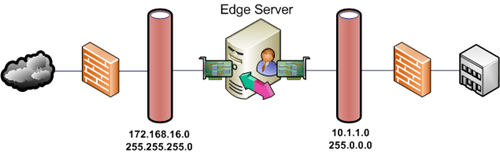
The documented, recommended, and unquestionably supported configuration is simply to deploy separate physical network interface cards which are connected to separate IP subnetworks.  (This includes a single physical card with multiple ports; whatever physical configuration that allows you to plug two cables into the server and the host sees separate interfaces. Let’s not get silly here.)  By definition this means that the internal and external subnetworks need to be uniquely different, which is typically found in a standard Perimeter Network located between separate firewalls.

A simple Access Edge deployment utilizing NAT:

IMAGE_1

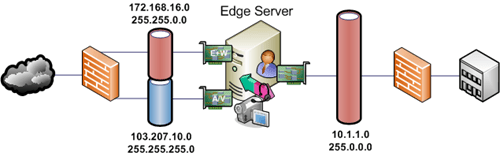
Or a consolidated Edge deployment with all three external roles assigned publicly routable IP addresses:

IMAGE_2

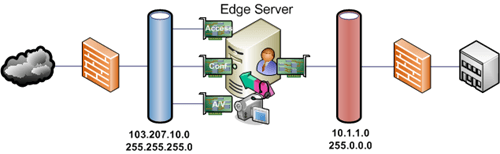
The above configuration only works for a consolidated Edge Server when all external IP addresses are on a public IP subnetwork, otherwise separate adapters connected to separate IP subnetworks would need to be used.  The Access Edge and Web Conferencing roles can be co-located on the same same external interface using the same IP private subnetwork.

Here’s a consolidated Edge deployment using the least amount of public IP addresses:

 IMAGE_3

This can be expanded up to separate physical adapters for each external role in a consolidated Edge server, as shown repeatedly in the documentation, for enhanced performance and security.  And if plenty of public IP addresses are available, then assigning each role a public address simplifies the configuration further:

IMAGE_4