Soo, you got access to Copilot, now what? Here are some best practices

Since Copilot got announced, I have been investigating what it means to be Copilot ready. There are three main topics when working towards Copilot ready, and we address all of them in our upcoming conference, https://m365revival.com/ February 15th in Oslo.

Today, my team and I got access to Copilot in our production tenant. What I know is that everyone is testing this out now, so what did I communicate to them? I focused on informing about access, setting expectations of what they could accomplish, and created a routine to gather lessons learned in a live loop component. Read what I posted and maybe you can use parts of this for when you are communicating to your pilot group. This is the Teams thread I started for my pilot group

Here is what I posted

We have purchased and assigned the Copilot for Microsoft 365 license, and we are waiting for it to be activated through group based licensing. It would be useful to measure how long it takes, so we can inform our customers as well. (Took around 15 minutes)

We should document good practice prompts in the loop component later in this post, here is the link Copilot Prompt Engineering

Here are some key points to consider and document as we use Copilot and gain experience for our customers:

  • Copilot chat in Teams can access data from Graph and you can ask about your calendar, emails, chats, conversations and files
    • Go to your app menu in Teams, search for Copilot and add the Copilot (new) app not M365 Chat
  • Copilot in Word, Excel, PowerPoint needs to be fed documents, but we should use links to documents in OneDrive and SharePoint
    • Copilot showed up in web versions quickly, but after a day, a sign out of Office and back in again Copilot showed up in PC clients too
  • Copilot in Office, OneNote and Loop only works with the current document and general knowledge
    • In Loop, insert new content and Copilot should be the first choice
    • Copilot in OneNote can be found in ribbon, appeared after Office client sign out and sign in
  • Copilot requires the new Outlook, but not the new Teams which means it works on Teams mobile
  • We have turned on Copilot in Teams meetings so that you don’t need to start transcript to use copilot in Teams meetings, we have turned on transcript in Teams calls so that you can use Copilot in 1:1 calls
    • For now we see that turning on transcript is a requirement, we will see when the news announced at Ignite takes effect
  • We can use Copilot studio to explore other sources, such as our accounting application

I think we are ready to use Copilot, but we need to follow some important rules:

  • We should run all our processes in Teams and channels, not in private chats, because our colleagues cannot see our chats. This way, we can ask Copilot about the status of a project and get a summary of the documents we have worked on, because we work out loud
  • We store our documents in SharePoint
  • The way we have built our Teams and sites, there should be no oversharing, but if there are any sites we should exclude, let me know
  • I am confident we have not shared anything we should not have shared, and that only the right people have access to Teams and channels

Do you have any other suggestions or questions on what we should focus on?

While I wrote this post, Copilot got activated and this post is rewritten by copilot based on my post 

In an ideal situation, how would I drive a Copilot project?

  1. Use my Digital Wellbeing Teams culture module to communicate how to drive internal processes and communication. Short version, use Teams channels, not chat and not internal emails.
  2. Create a prompt success case that everyone gets to try when they get access to Copilot, such as a document they can create in Word, then create a PowerPoint based on the Word document, then add design elements. Have a conversation in Excel and use Copilot in Teams to have a conversation about your projects. This helps people to understand what they can accomplish with Copilot.
  3. Use Copilot Labs to share best practice Copilot Prompts and teach users how to talk to Copilot like try to do one thing with each command.
  4. Measure success using Microsoft 365 Productivity score to get information about that users are USING Copilot.
  5. Measure success by investing in Viva Insights Premium to get HOW users are using Copilot as far down as on departmental level. Which department are succeeding, which department has more potential, how much are they using it and how are they using it. Do we see other productivity gains such as fewer meetings, more dialogue in Teams or other behavioral changes. Viva Insights can measure this.
  6. Use Viva Glint and Pulse to get the subjective experience with Copilot with weekly, monthly and quarterly feedbacks from employees. How are they succeeding, capture success cases, get feedback on what they need more information about.
  7. Make sure data quality and data security is taken care of, you can exclude SharePoint sites from being discovered by Copilot. Use Sensitivity Labels to classify your documents.

The thing is, that these topics are not new, we have been talking about them for the past 10 years, but now all of a sudden, they are more relevant than ever. Is Copilot success a competitive advantage? I think so, and the clock is ticking for getting there. What if your colleagues in other companies are succeeding, becoming more effective and exponentially work smarter than you and your team? What are the consequences, do you dare to get left behind?
Microsoft Teams Private Channels introduction

Today at Microsoft Ignite 2019 one of the most requested features was announced as GA. Private Channels is a highly requested feature and enables users to create channels that only a subset of users can see.

Why did Microsoft introduce private channels?

The requested scenario is that a subset of users in a Microsoft Team needs to discuss and collaborate without everyone having access and seeing the discussions. Keep in mind that members of a private channel need to be members of the Team.

The scenario where I see this being very useful is in projects where the steering group wants to have their own closed channel and file location to discuss the progress of the project, share meeting notes and make decisions for the project. Another scenario could be the sales department wanting to store signed contracts that only a subset of users have access to.

This is a new feature and I urge you to use private channels with moderation in the beginning and try to design teams around the notion that users should have access to all the content in a team. Use private channels as the exception, not the rule.

How to create private channels

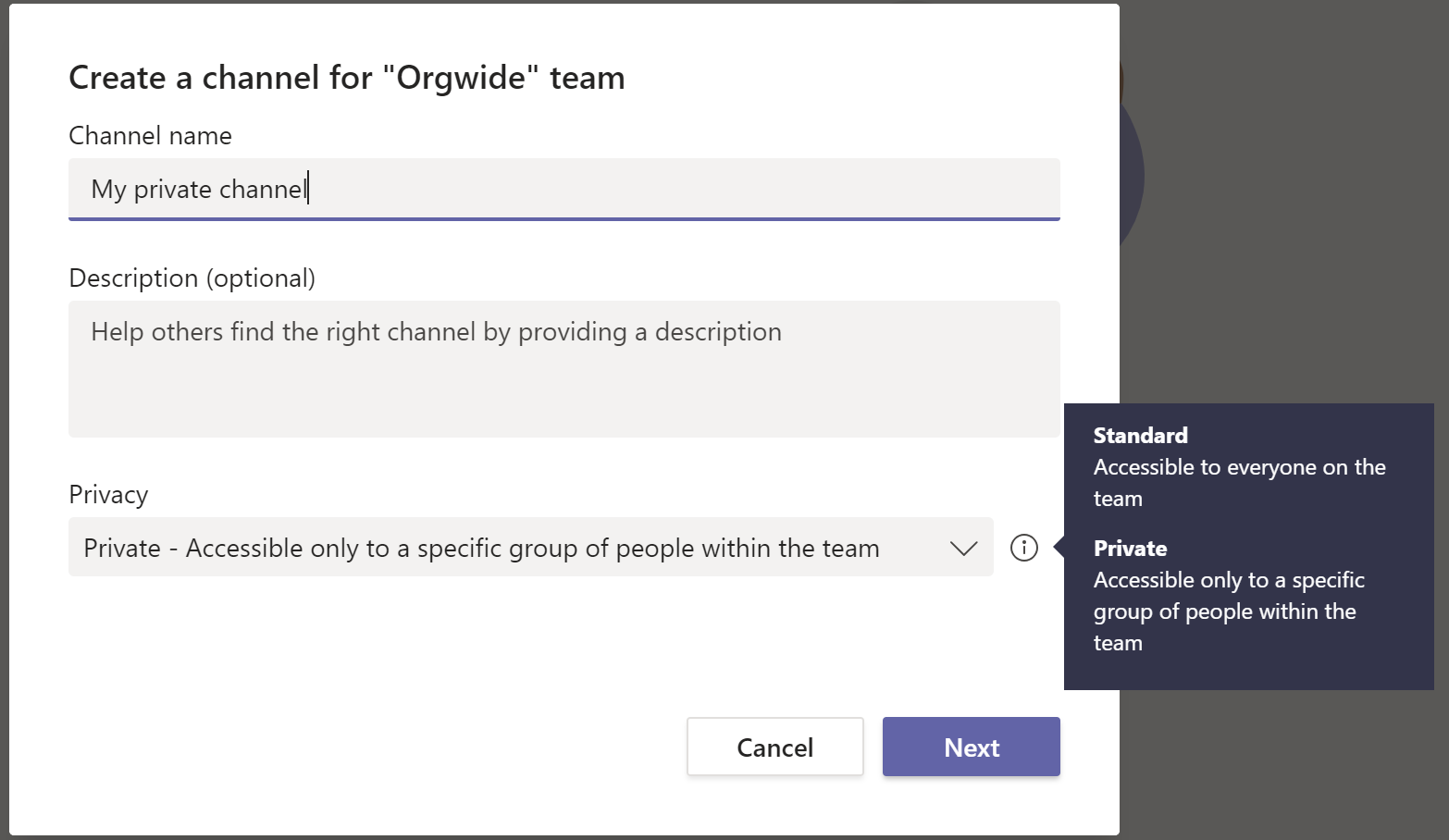
To create a private channel, you need to be a member with the ability to create private channels. When you create the channel, you get the option to make it private, you are asked to add members from the team you are creating the channel in. Here you see how you can make a private channel.

PrivateChannels1

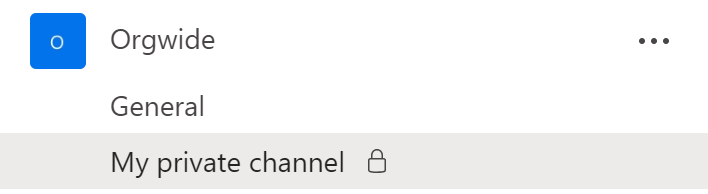
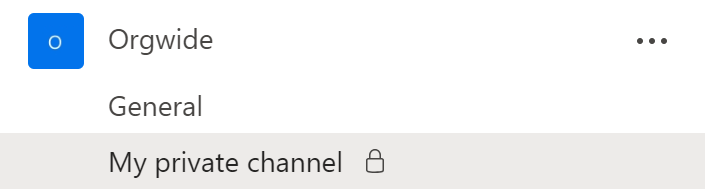
When the channel is created you will see who the members are, and the channel is marked with a padlock icon.  Here you see how you can differentiate between regular channels and private channels you are a member of

PrivateChannels3.PNG

The creation of channels can be controlled on a Team setting level. Some facts about channel management:

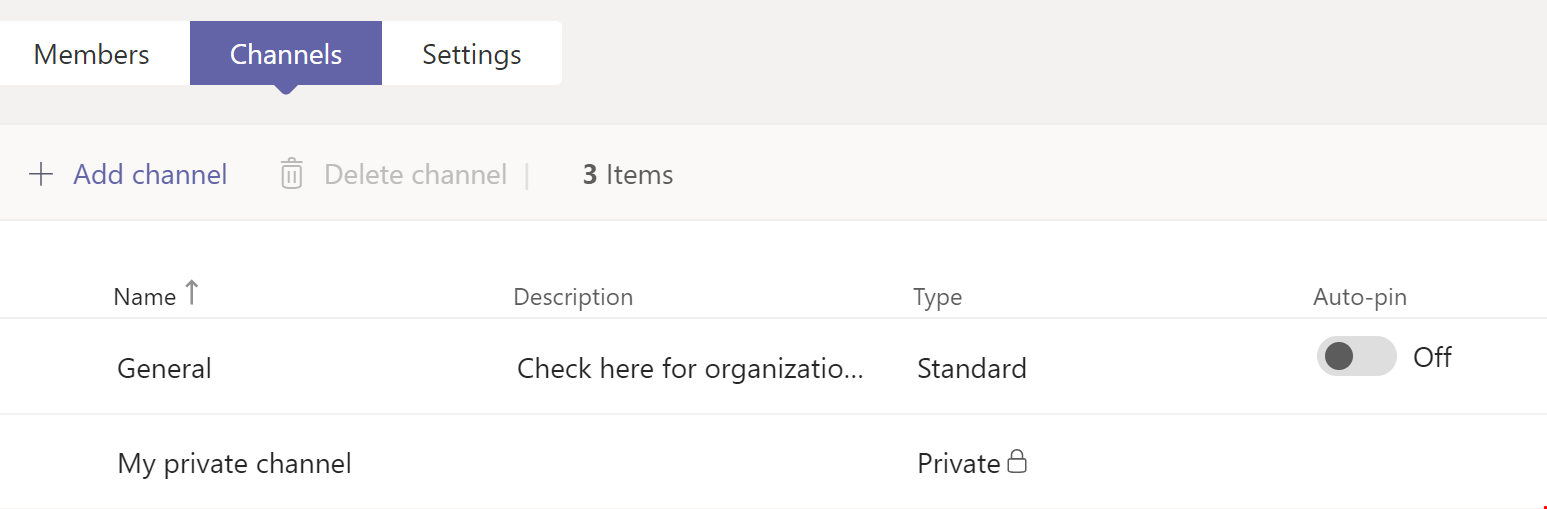
  • Owners see private channels that they are not a part of under Manage Team and channel list.
  • Owners can control if members are able to create private channels in the Team under settings for the team
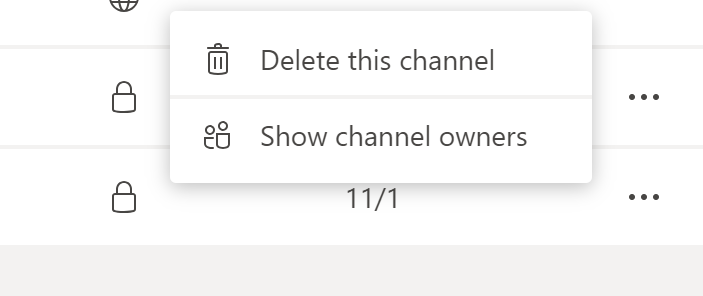
  • Owners of the team can delete or see the owner list, to reach out if cleanup is needed.

privatechannels9.PNG

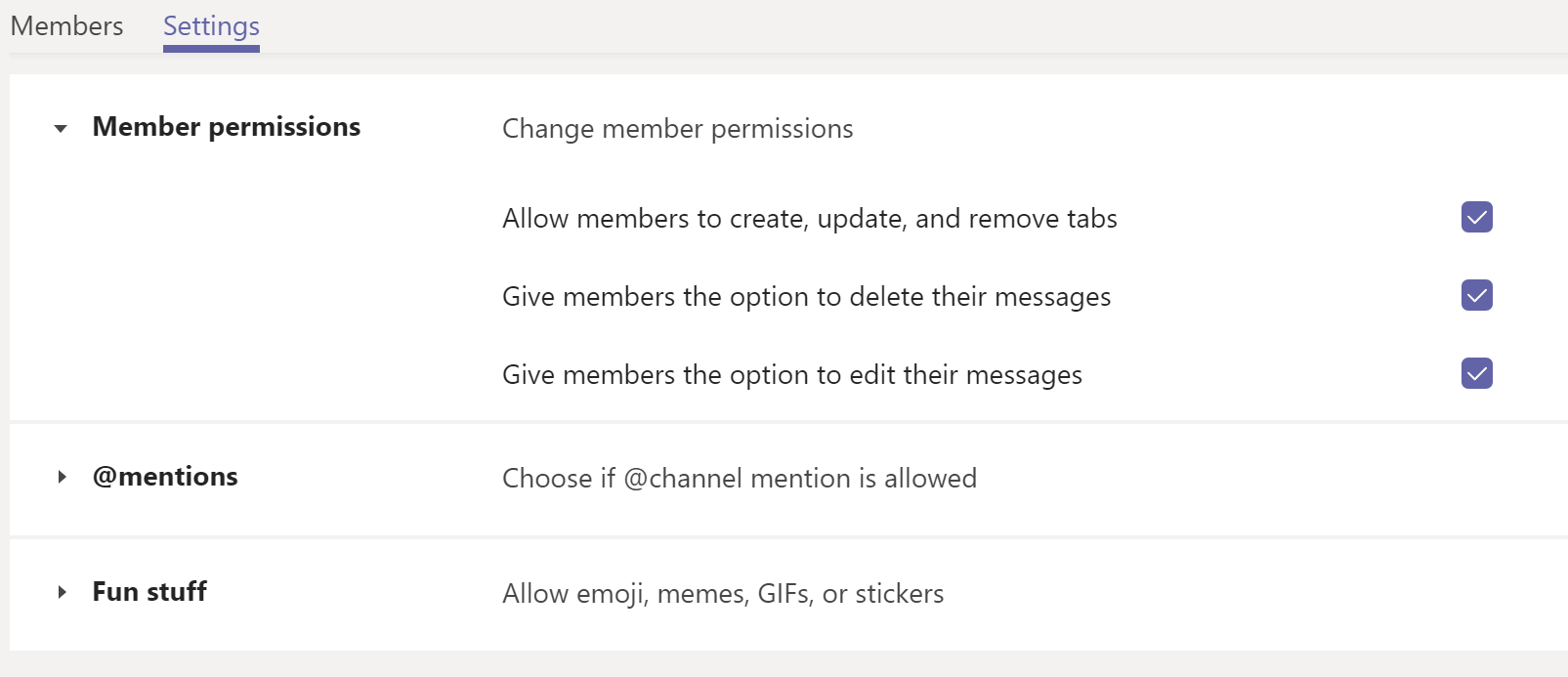
  • Owners of a private channel get to add member and control @mentions and Member permissions, under manage channel and settings.

privatechannels8.PNG

What are the features available today?

  • Chat and files are available from the GA date and are rolling out in November 2019
  • All members of the private channel need to be part of the original team
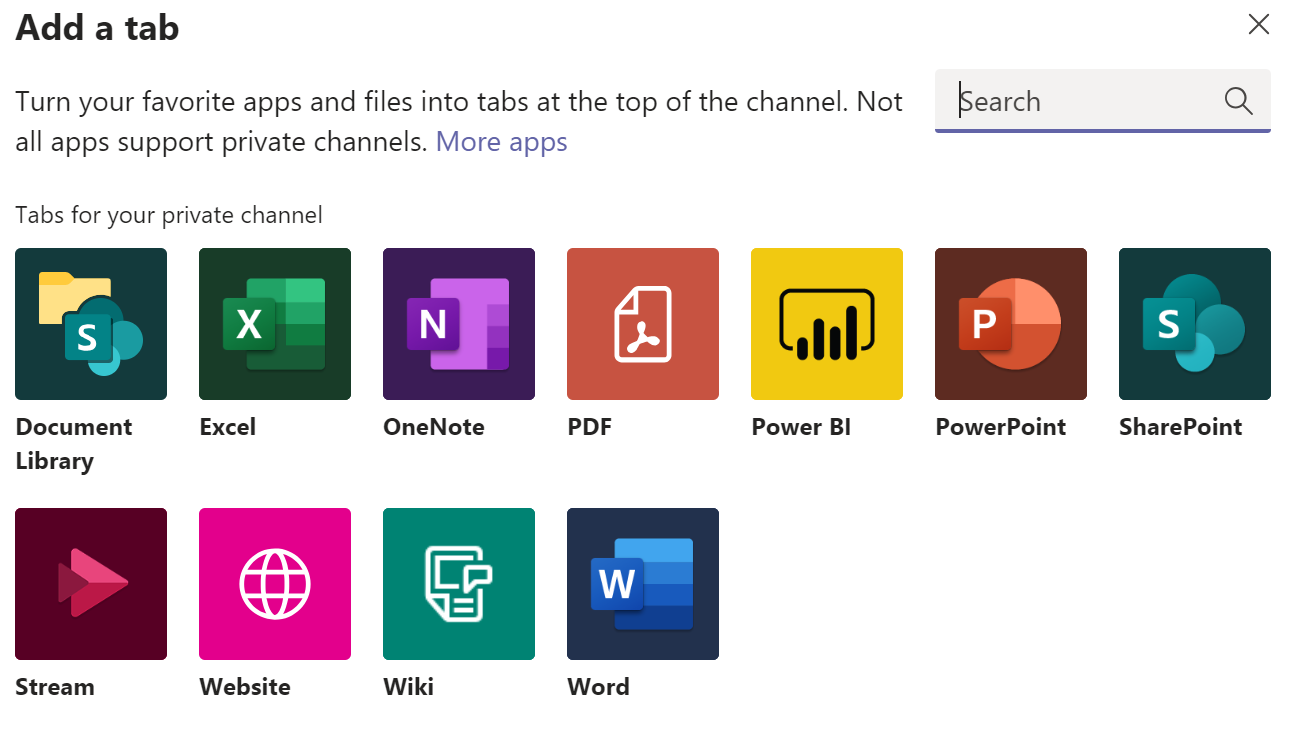
  • There are some limitations on apps available today, such as Planner and Stream connected to the channels, these are on the roadmapPrivateChannels4.PNG
  • When you create a private channel, it creates a new SharePoint TeamSite for that channel. This is to make sure control of who can access the files.
  • Administrators can find private channels in the Teams admin center

PrivateChannels5

  • Administrators can also find the SharePoint sites using the SharePoint PowerShell module using the template property
    • Get-SPOSite -Template TEAMCHANNEL#0
    • you can see that the site name includes the original team name, which means you can find out how many private channels are set up per team
    • The ability to see all private channel team sites in SharePoint admin portal will come later

privatechannels7.PNG

Did you know that you can control notifications from #MicrosoftTeams channel @mentions? 

Yep, it’s true, here is the scenario

  1. You are joined to a lot of teams with high activity and people are @mentioning the Teams and channels because internal emails are moved to Teams, which they should!
  2. Every day you get back to work, you have a huge amount of notifications to go through in your activity feed because people are @mentioning everything all the time to get attention
  3. You are starting to wonder if Teams is a fad and are longing back the thousands of unread internal email messages in Outlook instead

Here is the solution

  1. To avoid getting a notification when someone is @mentioning a channel
    • Go and unfavorite itUnfavorite
    • You still get a notification when someone @mentions your name
    • You cannot unfavorite the General channel, this is why it should be only used for off-topic discussions, wins or general announcements
    • Want to go the other way and get notified whenever someone is talking in a channel? Go and follow the channelFollow
  2. To avoid getting a notification when someone is @mentioning a team
    • There is no way to avoid getting a notification
    • This is why you should refrain from mentioning a team unless it is at the utmost importance
    • You can actually turn off that people can mention either a team or a channel as owner under Manage Team -> Settingsmentions

That’s it really. Now you know it is a huge difference in @mentioning a Team vs channel. #LifeHack

My unbiased review of Skype for Business Unleashed

Nevermind! My name is in it!

With 15 other awesome Skype for Business subject matter experts. 1001 epic pages on everything you thought you did not need to know about Skype for Business. It just has to be a great book, run out and buy it :)

Also look up my chapter on VDI, cool stuff is happening there. Was an honor to be part of it, thanks Pat Richard for involving me :)

Five years of blogging and 1,000,000 hits!

ThankYou!First off, thanks to all who have visited msunified.net and given feedback to the blogposts. I am stoked that my blog msunified.net now has more than 1,000,000 hits. Since I started blogging in 2009 it has been the place where I post my notes from the field, collections of links and Thoughts on UC.

Some of the most popular blogposts of all time

  1. Installing Exchange 2010 Prerequisites on Server 2008 R2
  2. Enabling Lync Server 2010 for Lync Mobile Clients
  3. Installing Lync Server 2010 Prerequisites on Windows Server 2008 R2
  4. Configure Exchange 2010 InternalUrl PowerShell script
  5. Lync Server 2010 features and how to configure them
  6. Lync Server Mobility Troubleshooting Tips
  7. Lync Server 2010 Troubleshooting Tips
  8. Installing OCS 2007 R2 Prerequisites on Windows Server 2008 R2
  9. Script for Configuring Exchange 2010 Internal and External URLs
  10. Lync Server Front End: Lost connection to the Web Conferencing Edge Server
  11. Lync client sign-in and DNS records recommendations

Some of the most popular blogposts the year of 2014

  1. Installing Exchange 2010 Prerequisites on Server 2008 R2
  2. Lync client sign-in and DNS records recommendations
  3. Enabling Lync Server 2010 for Lync Mobile Clients
  4. Lync 2013 Downloads
  5. Configure Exchange 2010 InternalUrl PowerShell script
  6. Lync Server Mobility Troubleshooting Tips
  7. Troubleshooting Office Web Apps Server for Lync
  8. You see only a white screen when viewing Lync 2013 desktop sharing
  9. Installing Lync Server 2010 Prerequisites on Windows Server 2008 R2
  10. TEL, SIP, mailto, and Lync meeting links association

Where do the all time visitors come from

  1. Search engines
  2. TechNet Forums
  3. Twitter

Some thoughts on the activity

  • People are still installing Exchange on Server 2008 R2 :)
  • The old blogposts from 2010 are still relevant
  • Twitter is a relevant platform to reach out to my audience as it is number three all time source for visitors
  • The type of article that drives recurring hits are
    • the ones that solves a specific problem
    • troubleshooting guides
    • link repositories
    • articles explaining how stuff works
  • I also use this blog as a landing page for all my content, but articles like this one will not drive much recurring users, but helps me communicate my thoughts in a better format than the 140 characters on Twitter :)
  • I always try to remember to blog solutions I find to strange problems, typically the solution was tips from multiple sources and by collecting them and describing how I solved the problem is a good blogpost, and will help others having the same problem.

Afterthought

The amount of hits really motivates me to continue share my experiences as an IT-PRO with solutions to problems, but also highlighting not so mainstream knowledge like I do in my LyncPro Tips series and Thoughts on UC YouTube series. Thank you for your continued support :)

OneMillHits1

On December 23 2014 msunified.net reached 1,000,000 views!